
One of the call center’s main goals is to attract as many customers as possible. This raises the question of how to expand communication and feedback channels without making the agent’s job more complicated. Oki-Toki offers a solution that can meet the needs of any company — an omnichannel platform.
In this article, we’ll show you how to set up and effectively use chats at work to grow your business.
What is an omnichannel chat and how does it work?
An omnichannel platform is a system that brings together all communication channels for interaction between customers and the company. It allows the customer to choose the most convenient way to contact the company. By connecting telephony, email, and messengers, you get a single system for handling all inquiries in one window.
Oki-Toki provides a platform that simplifies the process of creating and configuring chats for any business goal and supports work with various communication channels.
Communication channel settings
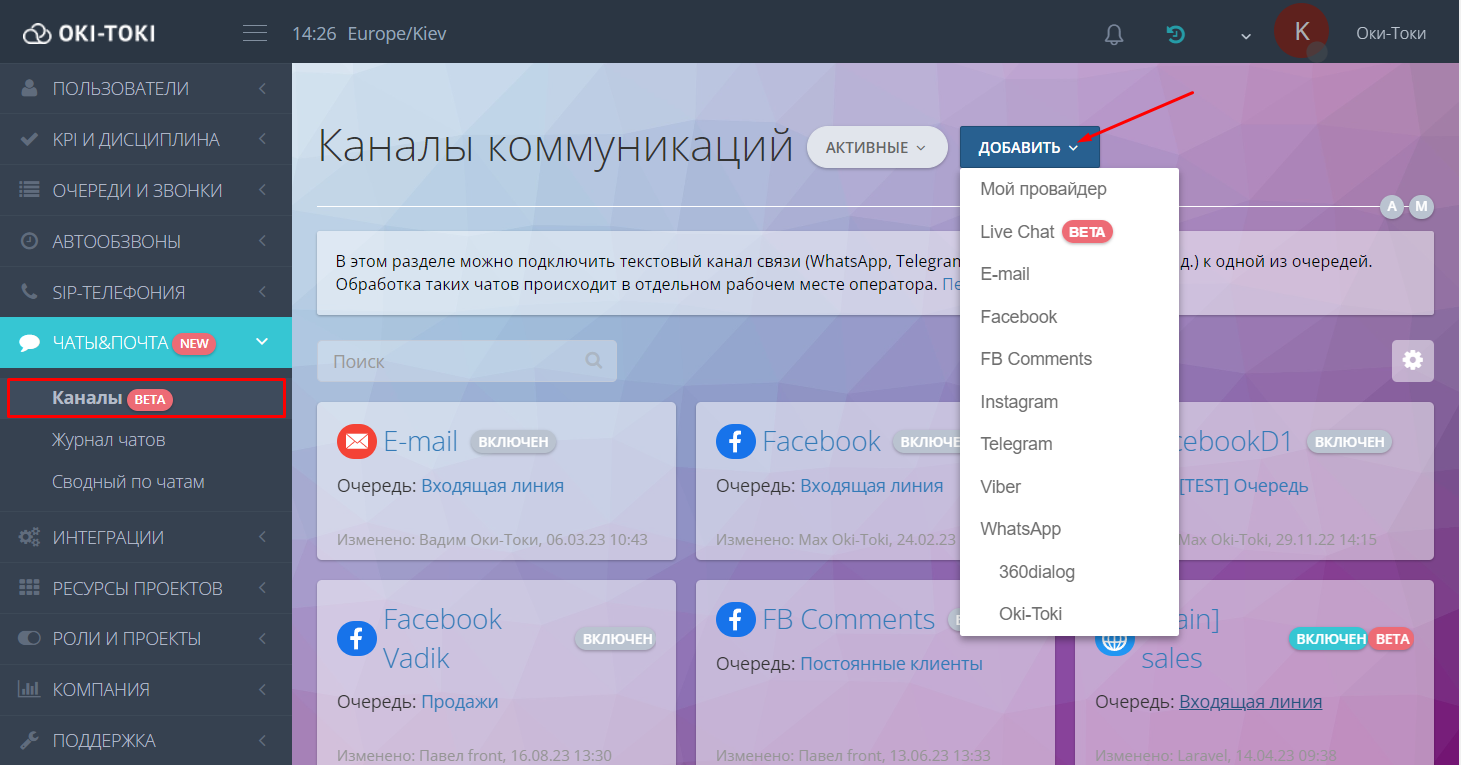
Before you start working with customers, set up the required communication channels. Go to the Chats & Mail section, Channels and add the ones you need by selecting them from the list. At the moment, integration is available with messengers: WhatsApp, Viber, Telegram, social networks: Facebook and Instagram, website, and email.
Each communication channel has its own unique settings that need to be filled in. Using the prompts, enter the required data to connect the channel.
Agent workflow organization
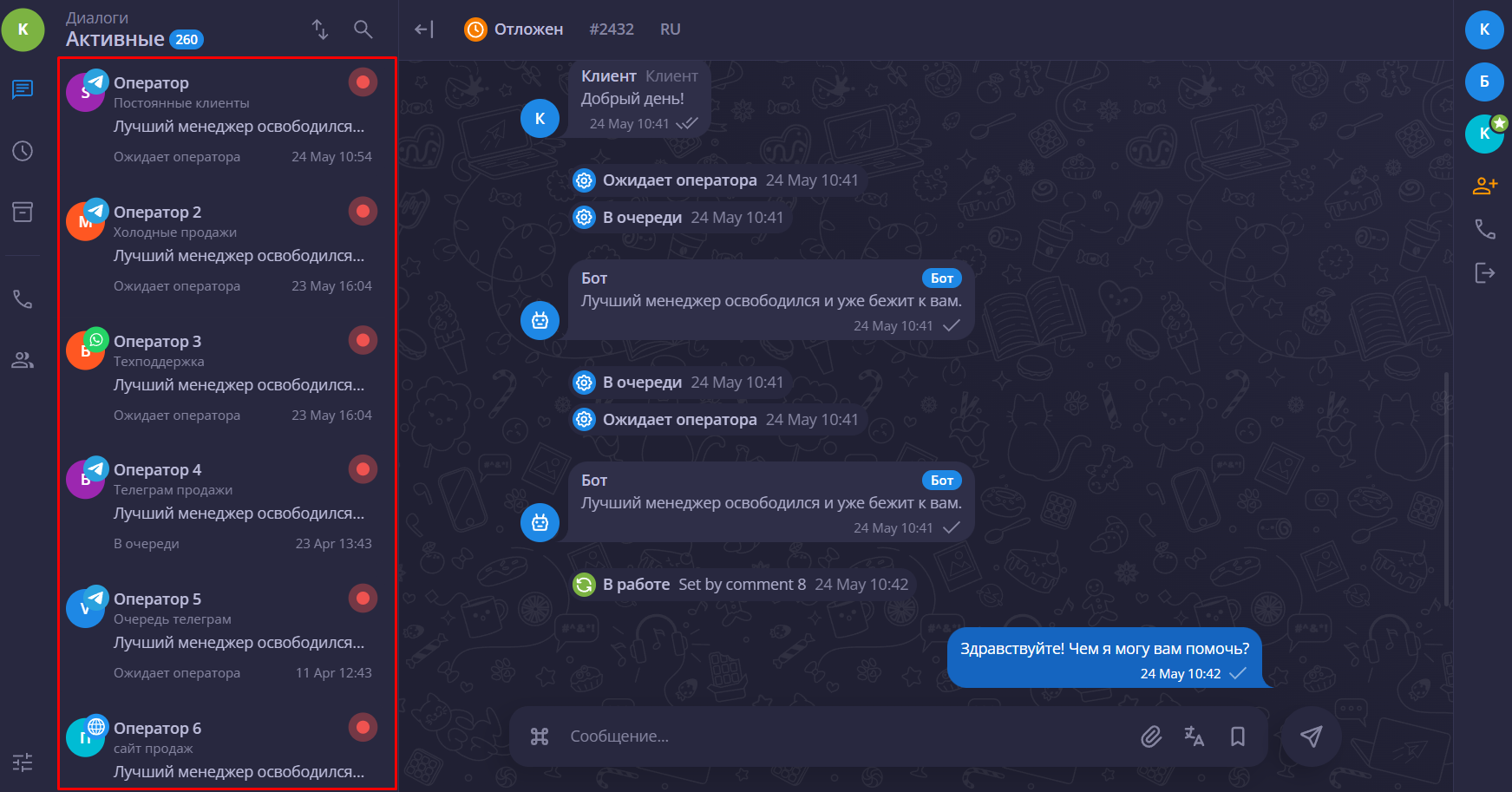
The agent workspace is available at this link. The user-friendly interface simplifies the agent’s work, allowing them to see 10 chats on one site and avoid switching between multiple tabs.
The chats are right next to each other, but this does not create inconvenience thanks to a single processing window. Each inquiry is assigned to the responsible agent, who handles it through to resolution.
Interface
The simple chat interface makes life easier for agents, allowing them to communicate with customers effectively and manage their tasks.
Let’s take a closer look at the agent workspace functionality.
Left sidebar
- Agent data can be viewed by clicking the circle in the left corner of the sidebar. Here, the agent can change their status and track how long they have been in it. You can learn more about statuses in the blog article.
- Available dialogs are divided into the following states: “Active”, “Pending”, “Completed”, and “Archive”. You can find the right chat using the search bar, as well as filter them by different criteria (by the latest message, new or old, by alerts).
- Profile settings are located in the lower-left corner. You can choose the chat color theme (light or dark) and the communication language. You can also set permissions for push notifications and spell check.
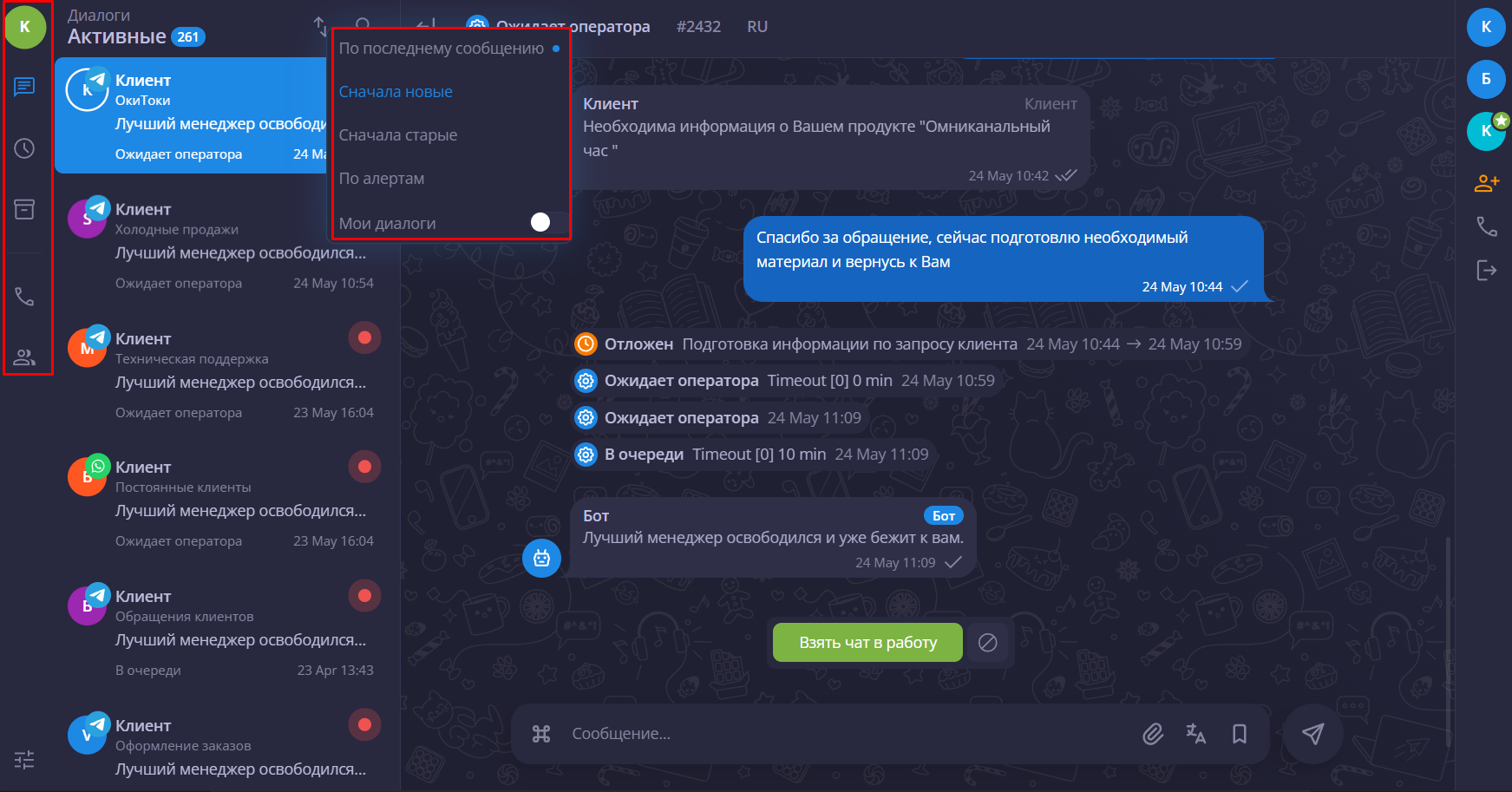
Soon, the agent will be able to make a call and create a chat, which will be convenient not only for communicating with clients, but also for solving internal issues.
Right sidebar
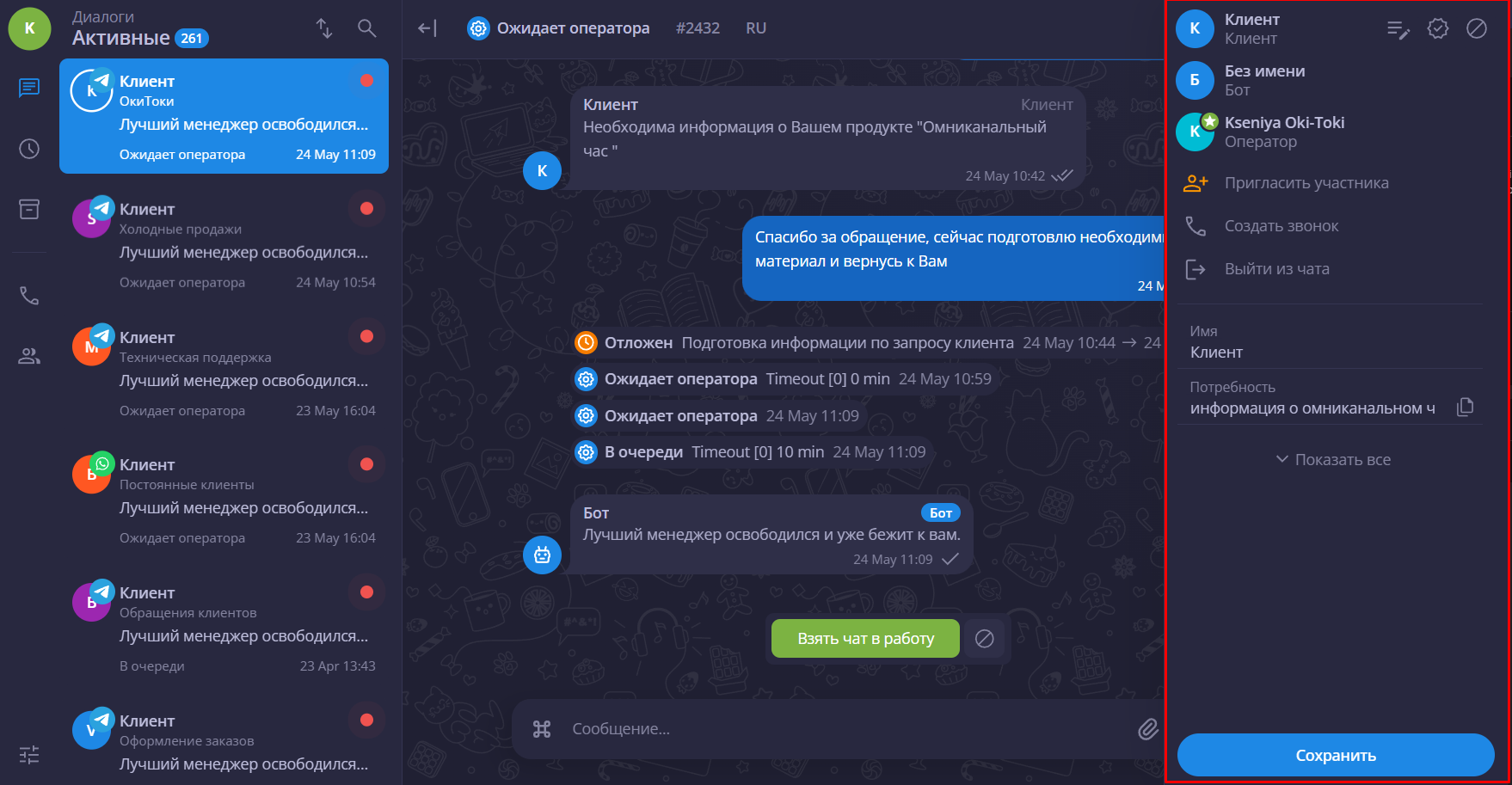
It becomes active when the agent enters a chat. It displays:
- Client name – it can be edited, the client can be added to favorites, or sent to spam;
- Bot and the option to go to its settings in Queue;
- Agent name – here you can remove responsibility for the chat or exclude the agent from it;
- Adding an agent to the chat – if needed, the agent can invite a colleague into the chat;
- Client information – fields for entering client data are available.
Chat with the client
At the bottom of the screen, there is a message window. Here, you can not only enter the required text, but also use prewritten phrases. To configure message templates, go to the Queue to which the chat is linked.
Set up an intelligent chatbot that will reply to the client when the inquiry is “in queue.” It greets the client, informs them about the number of available agents, the estimated wait time, and the next working hours if the request comes in outside business hours.
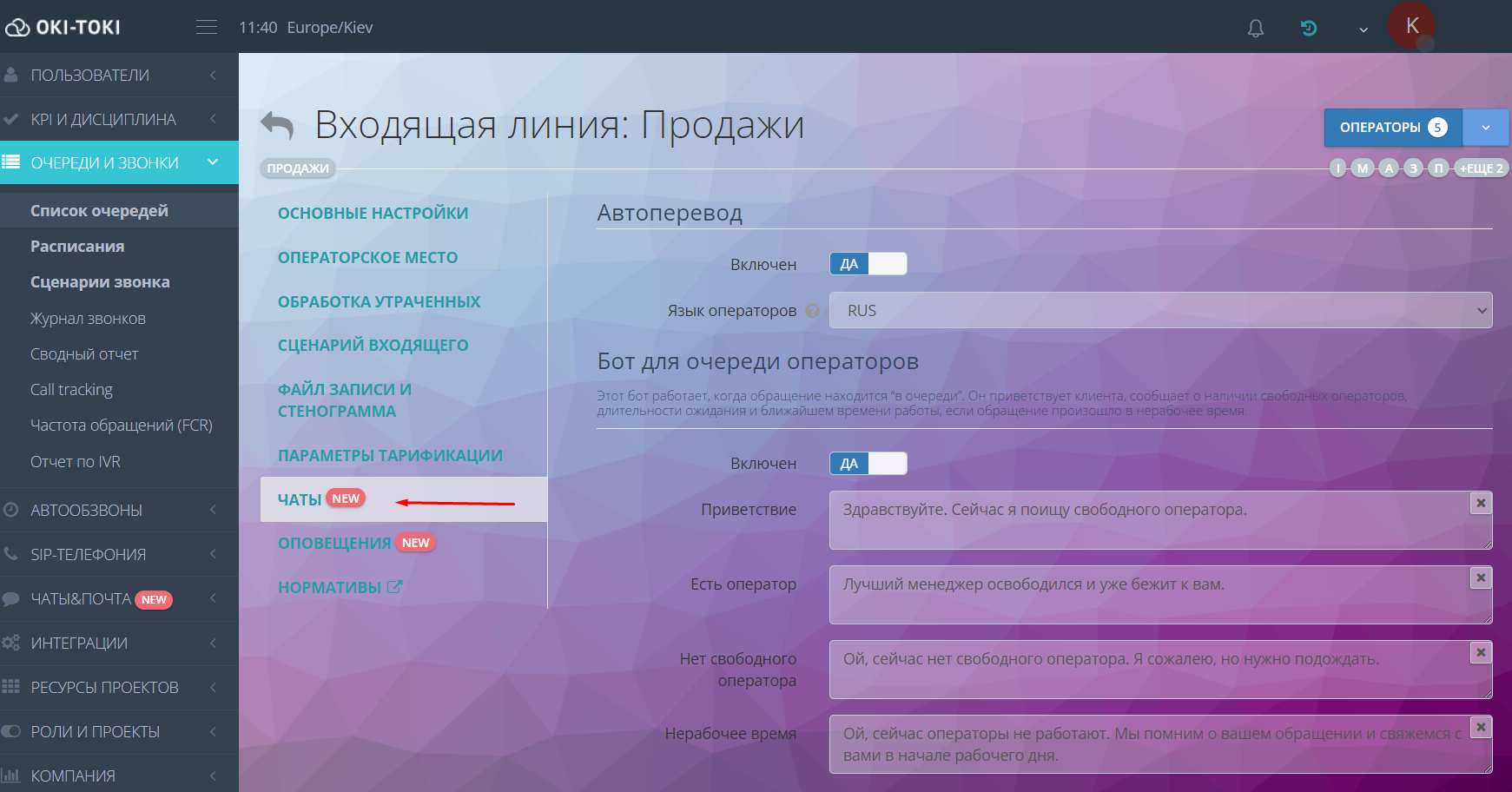
Statuses – the agent can set the required chat state by selecting it from the list:
- in progress – the agent has started communicating with the customer and is participating in chat handling;
- waiting for reply – used by the agent when they need additional information from the customer;
- postponed – can be used in cases where the agent needs a consultation, help from a colleague, or the issue requires additional time to resolve;
- in development – the customer request is passed to development or for adjustments when technical changes or fixes are needed;
- solution proposed – the customer is provided with a detailed answer or a solution to their issue is proposed.
- closed – the status indicates that all customer issues have been resolved and the chat is closed.
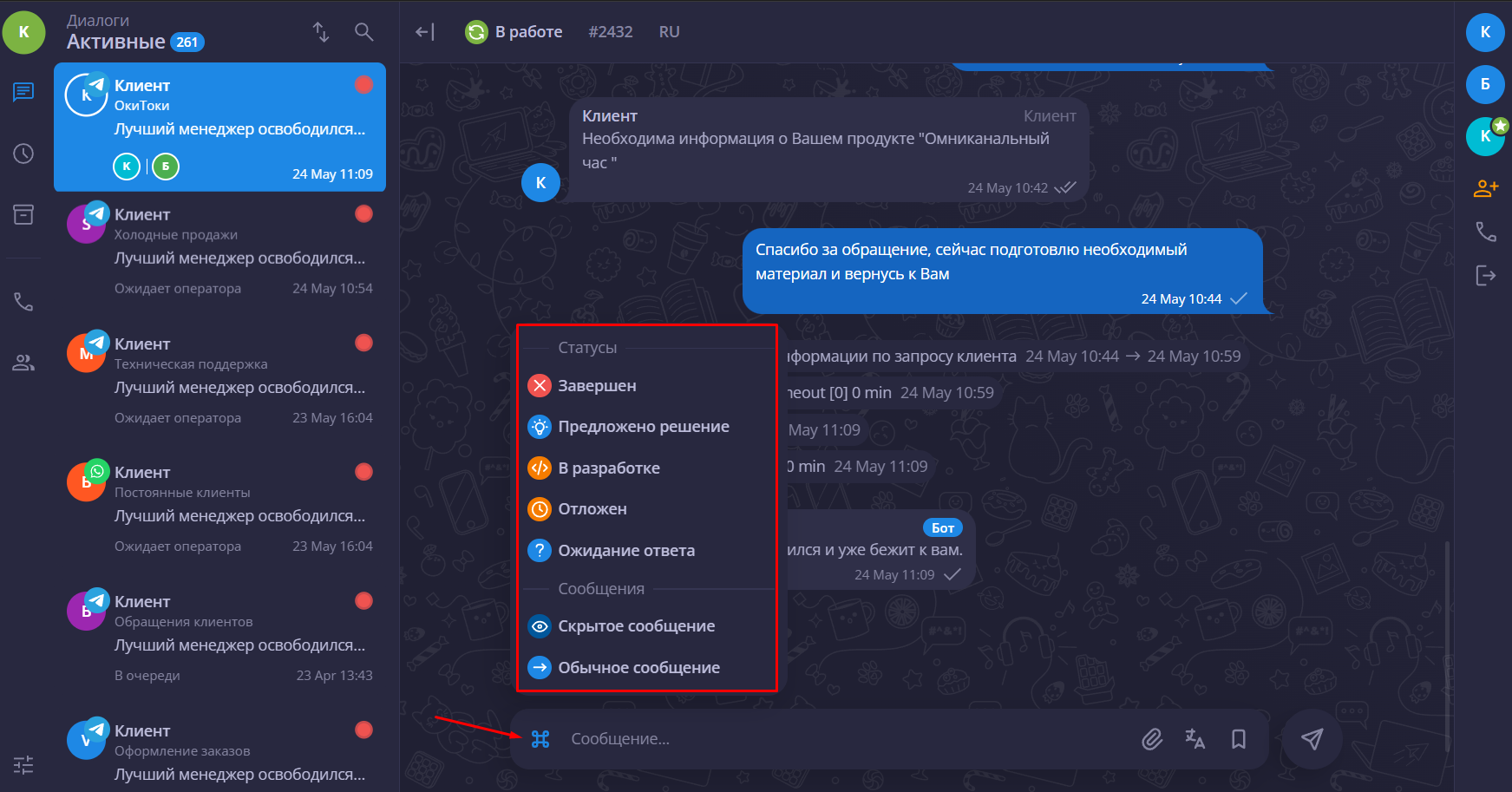
For each status, standards are defined, and they can be of 3 levels. The first is the mildest and corresponds to the standard; the other two characterize the degree of violation: bad and unsatisfactory. You can configure the time frames for each standard by going to the queue settings.
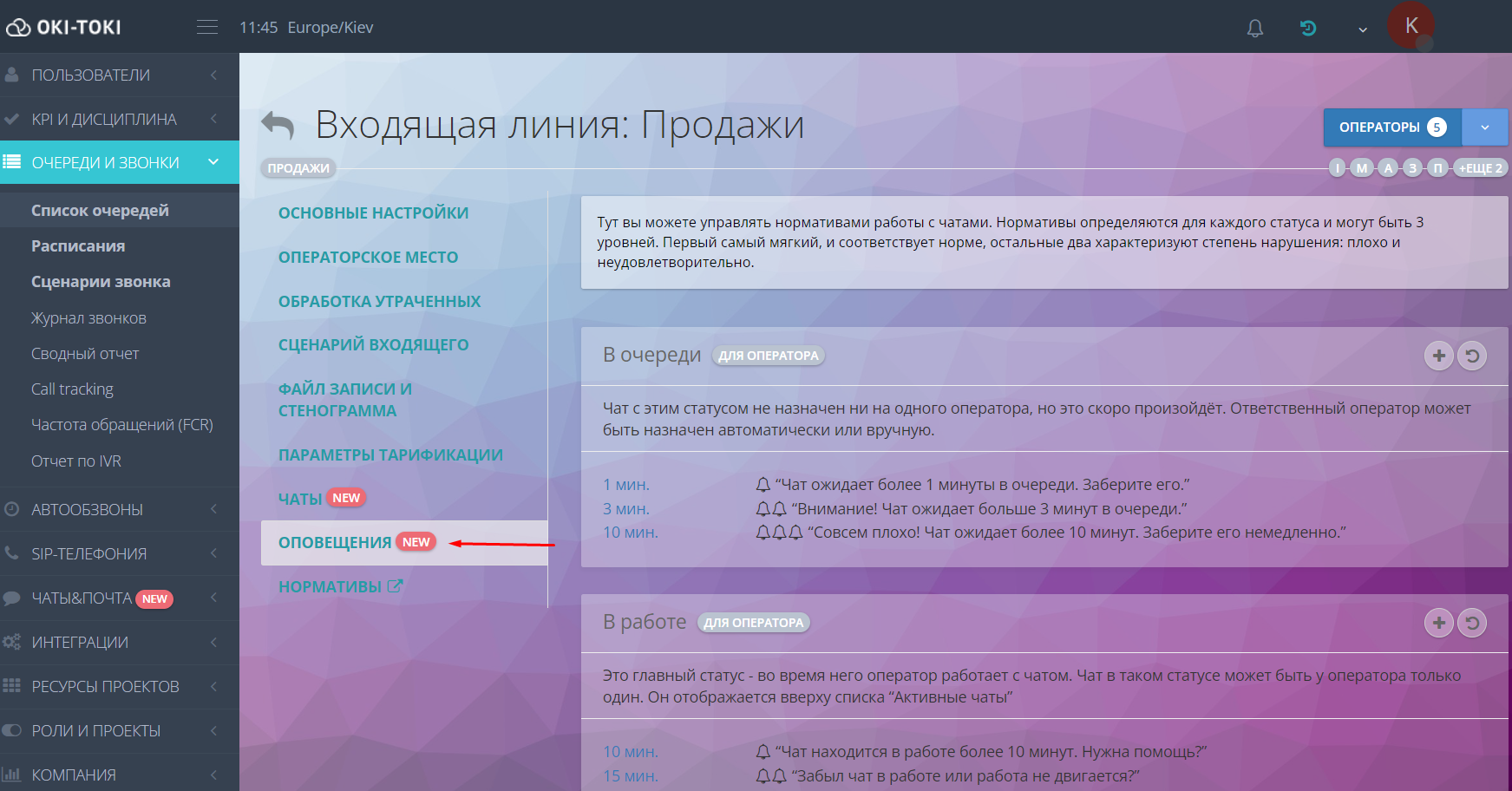
In the Notifications tab, you can set the required parameters both for the agent (statuses: in queue, in progress, in development, waiting for agent, postponed) and for the customer (waiting for reply, solution proposed).
KPI
Monitoring agent performance in chats is important to ensure a high level of communication with customers. Oki-Toki provides effective tools for tracking agent work, which makes it possible to quickly analyze and eliminate issues.
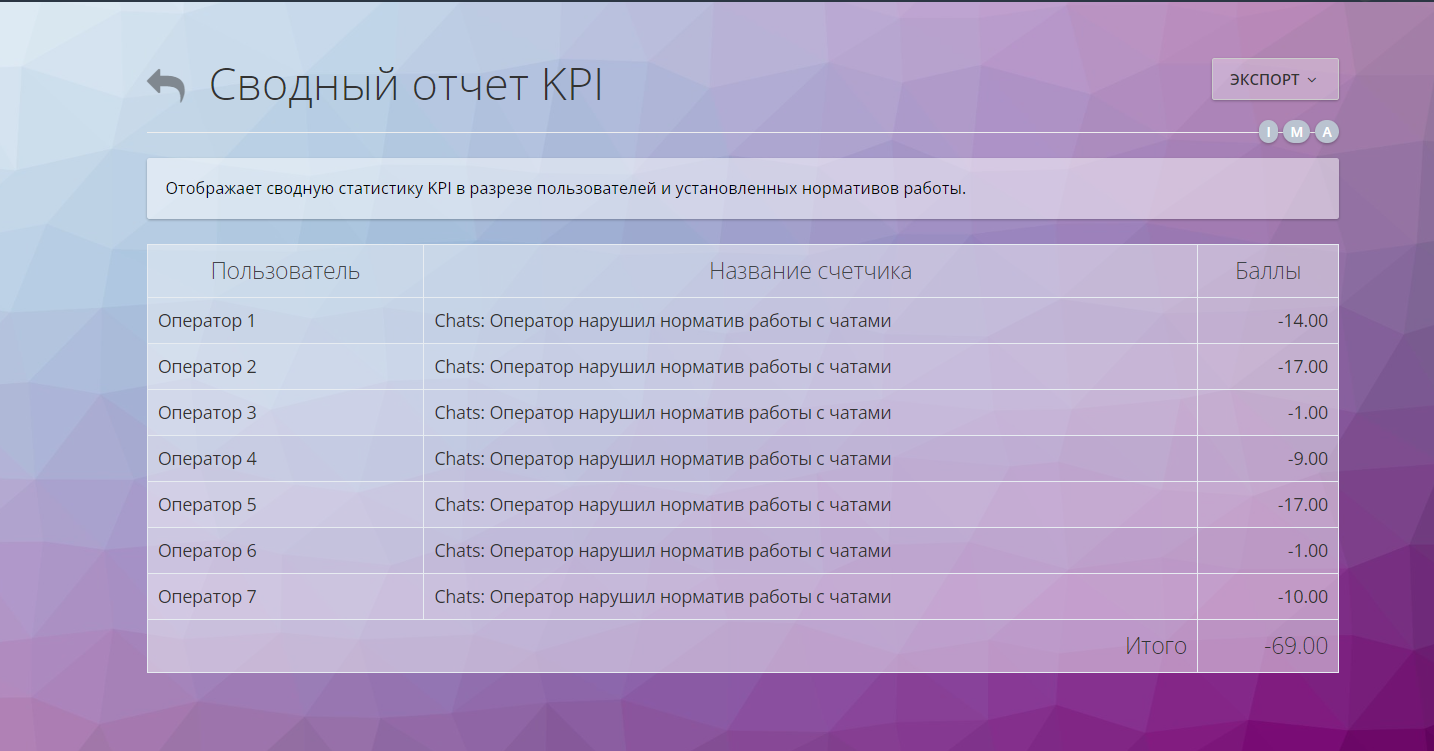
Create a standard in the KPI section that will help identify agent violations when working with chats. Choose the necessary parameters in the settings and apply the standard. You can view the result in the KPI Summary Report, which will help you evaluate agent performance and adjust business processes in time.
Chat reports
Reports
It can be generated by going to the sectionReports, by selecting the Chats section.
The section contains 4 subsections:
- Overall Statistics – this section provides information on the number of chats (open, closed, and new) for the selected period; the median agent waiting time (average time the customer spends in the queue) and the top chats by number of inquiries;
- Chat Activity and Performance – summary data for the selected period on closed chats, top agents by messages, median response wait time;
- Chats and Workflow – the percentage distribution of agents across different statuses, as well as the top agents in “Busy”, “Away”, and “Offline” statuses;
- Alert Level Statistics – information on the number of alerts in chats, top best and worst agents.
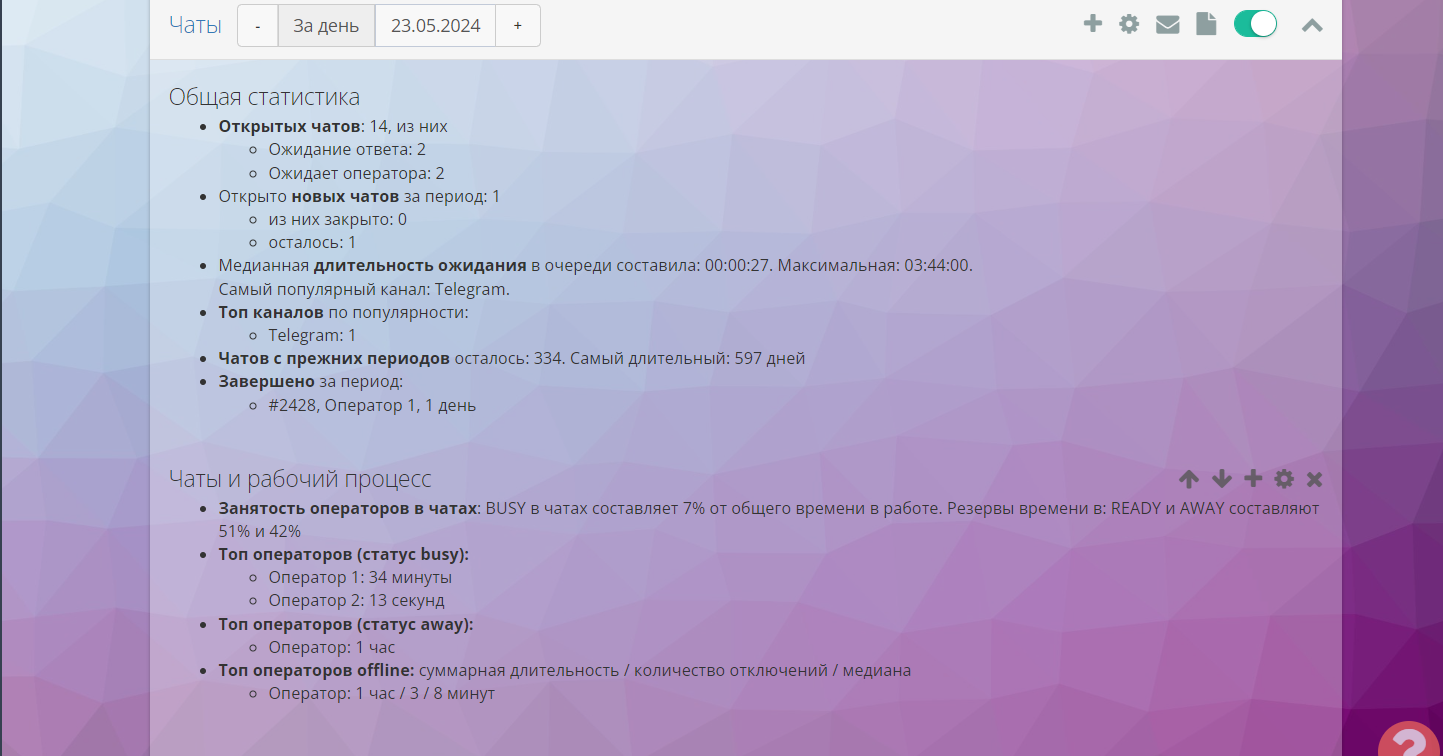
When creating a report, you can select one or several sections, as well as set up email delivery for the specified time period. More information about Oki-Toki reports is available in a separate article.
Reports
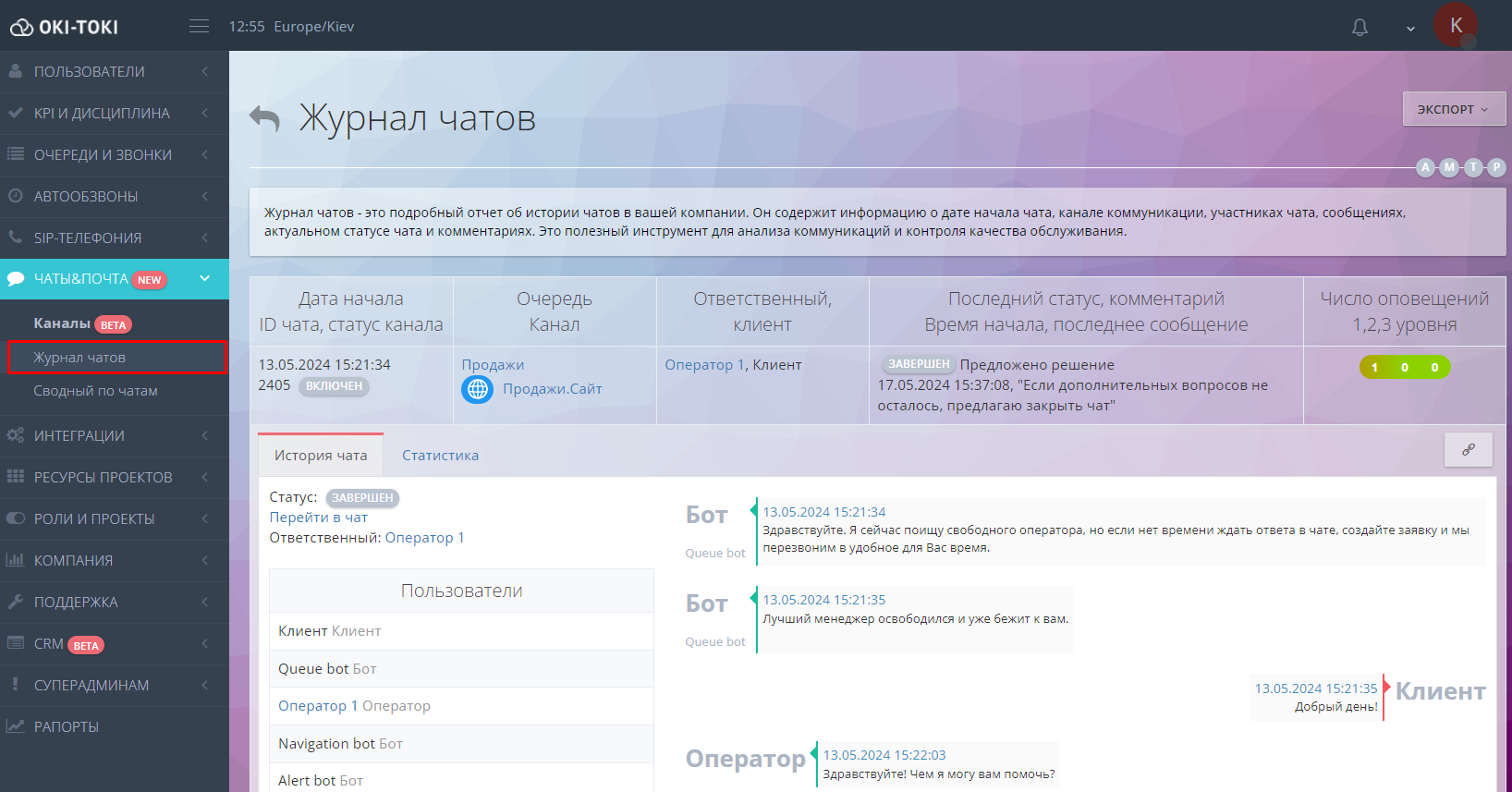
In Oki-Toki, there are two reports for chat work:
- Chat Log – this contains information about the chat creation date and its current status, as well as the communication channel name, queue, and a display of the dialog with the customer. You can track the number of alert levels; they are color-coded: green – level 1, yellow – level 2, red – level 3;
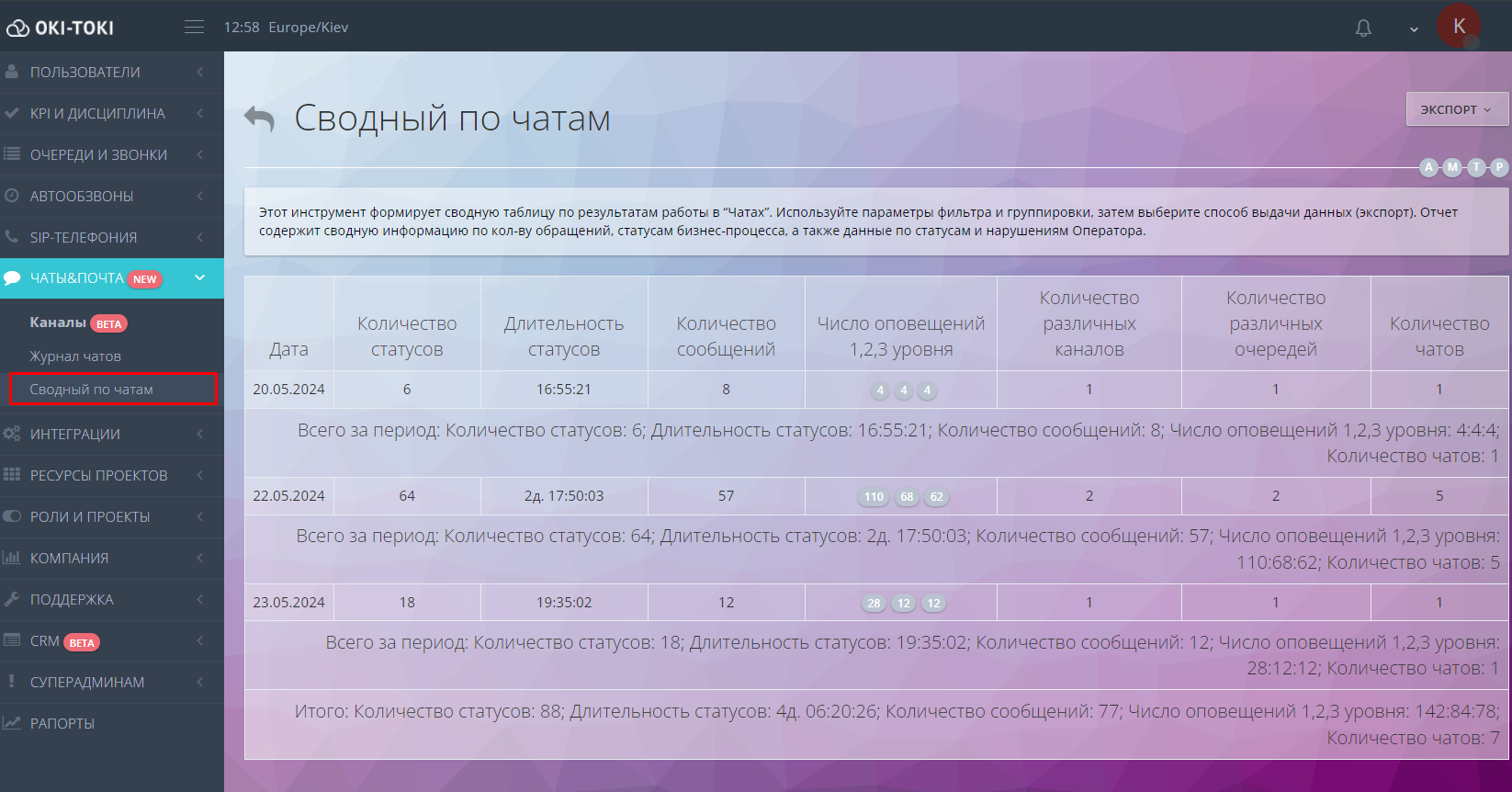
- Chat Summary – generates a summary table based on agent performance results. The report includes general information on the number of inquiries, as well as data on agent statuses and violations.
Benefits of Using Omnichannel Chat for Business
Omnichannel chat allows companies to communicate with customers through different communication channels. This solution helps them stay competitive and adapt to customer needs. Key benefits:
- Customer service: Omnichannel enables you to respond to more customers and improve support quality;
- Customer loyalty: Customers value the ability to choose a convenient communication channel and get fast answers to their questions;
- Internal communications: Chat can be used for communication between employees, which facilitates faster information sharing, improves task coordination, and increases the team’s overall productivity;
- Boosting competitiveness: A variety of communication channels attracts more customers and strengthens the company’s market position.
What types of businesses can use omnichannel chat
A chatbot platform – is an effective tool for many types of businesses, including:
- Retail: online stores use omnichannel chat to help customers choose products and solve issues;
- Services: companies in tourism, education, healthcare, and finance use chat for consultations and support;
- Technical support: IT companies and software developers provide technical assistance and troubleshoot issues through chat;
- Hospitality: hotels and agencies can use chat to book rooms, answer guest questions, and provide information about local attractions;
- Telecommunications: service activation, tariff information, etc.
Omnichannel chat in Oki-Toki is a convenient solution that brings all communication channels together in one interface. It allows agents to handle not only phone inquiries, but also requests from websites, messengers, and social networks, thereby expanding communication capabilities. Simple setup and a user-friendly interface make communication between agents and customers easier. KPI analysis and reporting help improve key aspects of performance and make results more transparent. Use Oki-Toki chats to scale and optimize your call center operations.