

We’ve gotten used to dialing phone numbers in different ways – some dial all the numbers, even local ones with the city prefix, like on a mobile (044 1111432), and some people are used to dialing “38” before the prefix – 38044 1111432. With incoming calls, it’s not that simple either – local calls come without the country code and city (1111432), and mobile ones come with the operator’s prefix. Contact centers need number conversion to standardize the storage and search for phone numbers.
For example, if your business grows and you open an office somewhere in the EU or America, a client’s number without the country code would create confusion and, strictly speaking, would be meaningless.
With oki-toki, you can bring numbers to one format with number conversion. This article will look at the main settings, application rules, and validation of customer phone numbers.
The issue with working with phone numbers
Phone numbers “enter” the call center from different sources and in different formats – some have the country code, others only the carrier’s prefix. Such a difference in formats is a common situation, but it can cause errors and confusion, for example:
- duplicates of contacts appear in the CRM;
- searching for clients becomes more complex;
- errors occur during incoming and outgoing calls;
- analytics and history of calls get distorted;
- the system does not scale well when working with other countries.
To avoid errors in the system, it’s better to store numbers in one format. For this, oki-toki has automatic number conversion.
Converting phone numbers in Oki-Toki
Number changing rules (conversion) are an automatic “editor”. The system can add, delete, or replace digits so that the number meets the required format. Rules are specified in the “template / action” format. For example: [9]/+380. If the number contains 9 digits, then the prefix 380 will be automatically added.
You can set conditions for the automatic addition or replacement of digits in the prefix in the settings:
- queues – for incoming and outgoing calls;
- dialer – importing phone numbers (without CRM);
- contact import – when adding numbers to CRM;
- SIP-provider – for converting the number to the carrier’s communication format;
Below are detailed settings for each option.
Converting numbers for outgoing calls
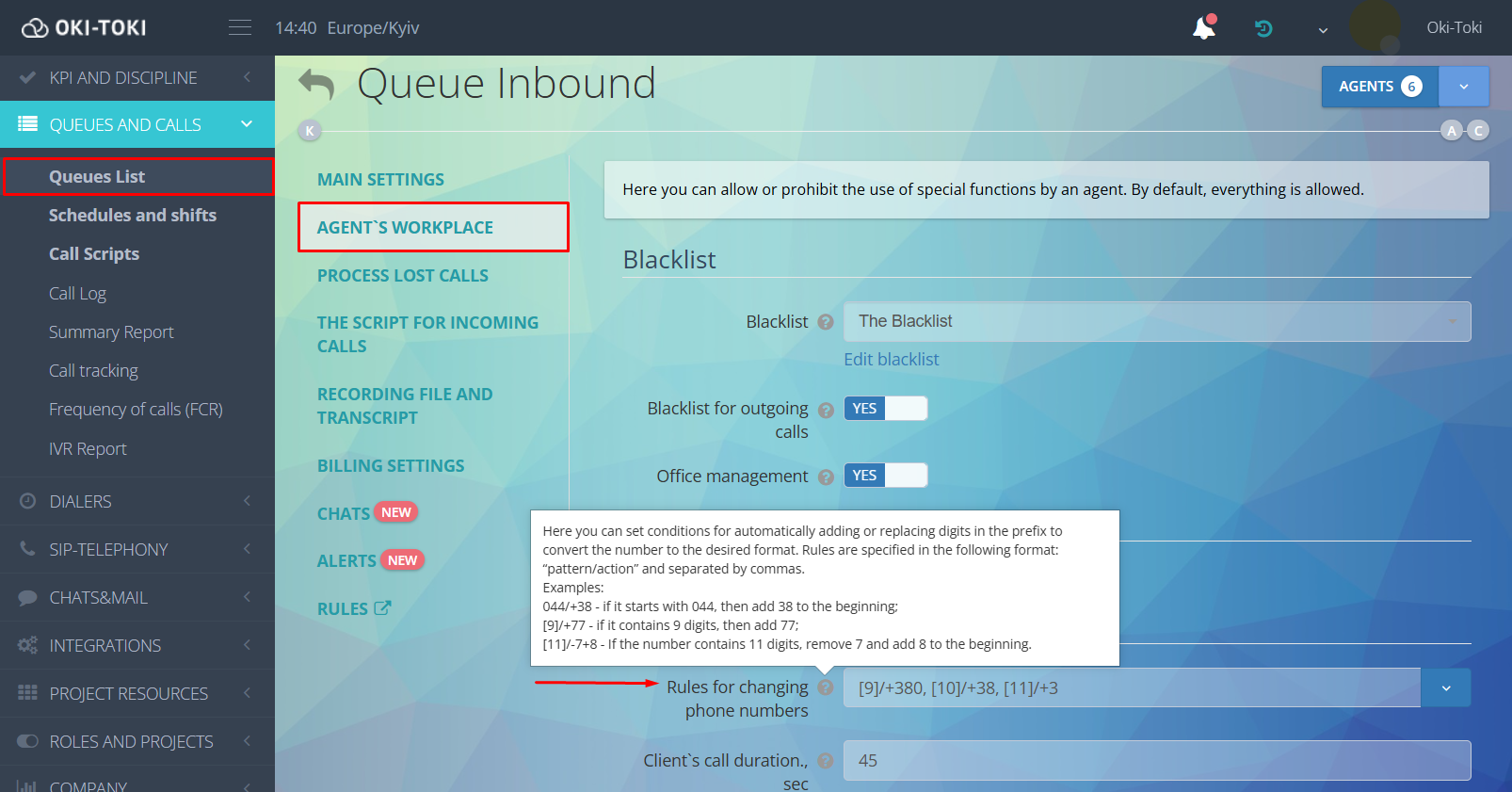
Rules for changing prefixes for OUT calls are set in the “Agent workplace” section of Queue settings.
Specify the rule by selecting from the list of available formulas or write your own. After applying the setting, the agent can dial the number in the preferred format, and the system will convert it to the standardized view.
Important! Avoid formulas that can simultaneously apply to one number. For example, conditions in the format [7]/+38095 and [7]/+38050 suggest adding prefixes to any 7 digits. This won’t allow the system to correctly convert the number.
Converting numbers for incoming calls
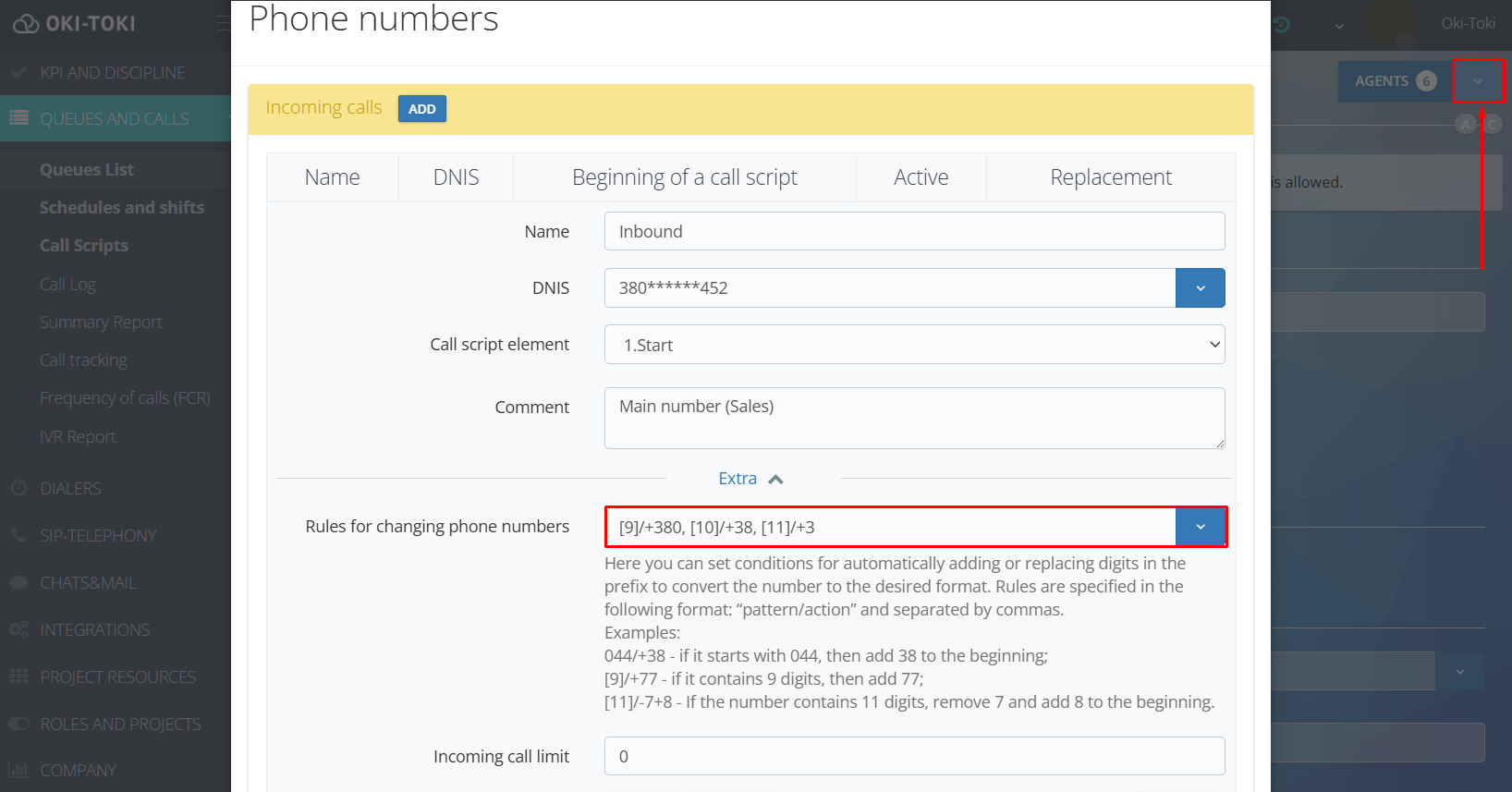
Conversion for IN-type calls is also configured in “Queue”, in the “Phone Numbers” section. Specify the rules and save the settings. After this, incoming numbers will be automatically brought to the set format.
This will allow you to match incoming calls with contacts in the database and avoid duplicates.
Converting numbers when importing contacts into CRM and Dialer
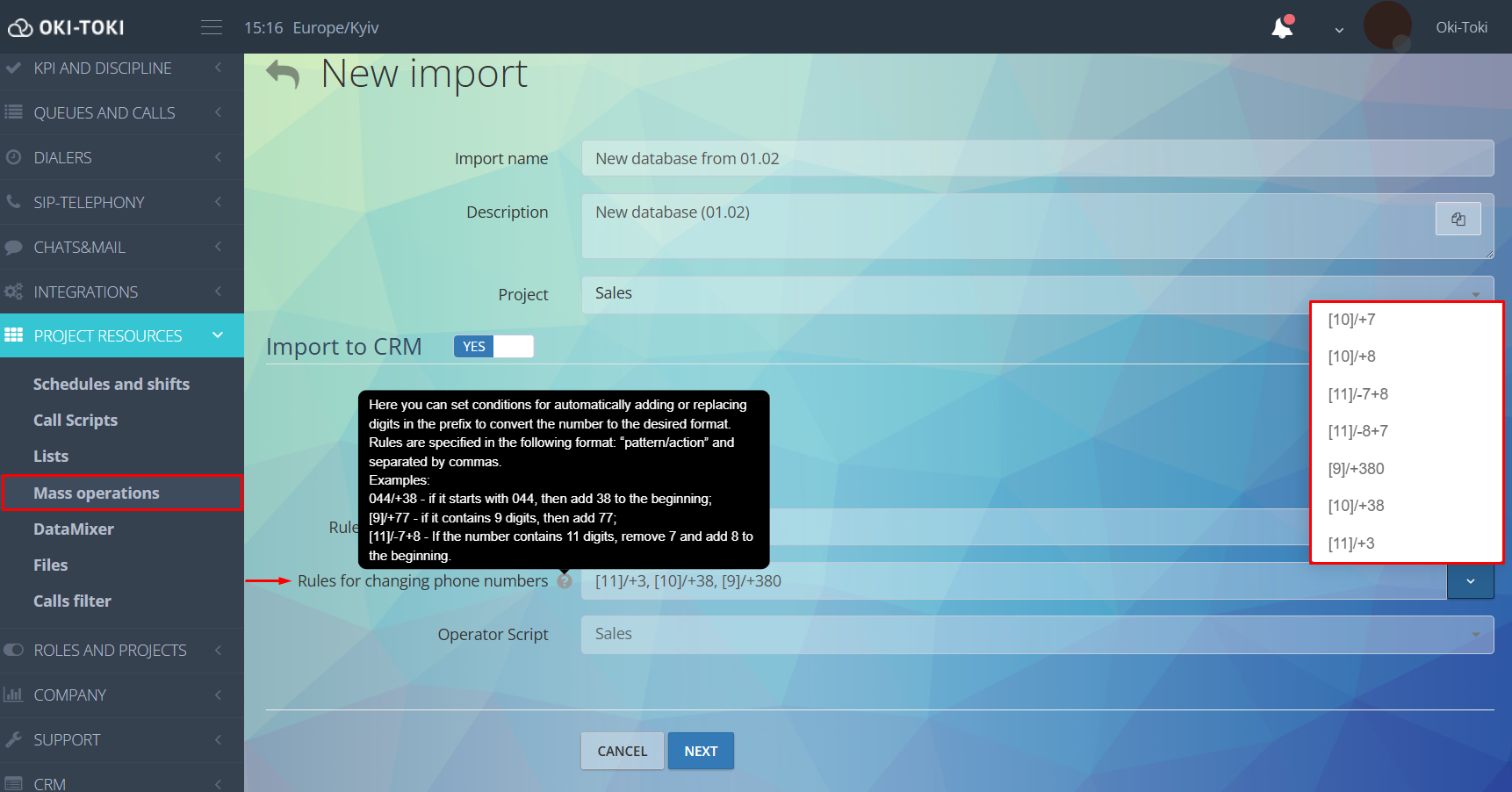
When uploading databases through mass operations, you can predefine the rules for number conversion.
In the “Mass operations” section, create a new import. Specify the project and activate “Import to CRM”. Choose the type of import from the offered: addition, update, addition + update, and agent script. Conversion formulas can be chosen from the list or written manually. The rules will be automatically applied to all phone numbers and will bring them to the required format even at the import stage.
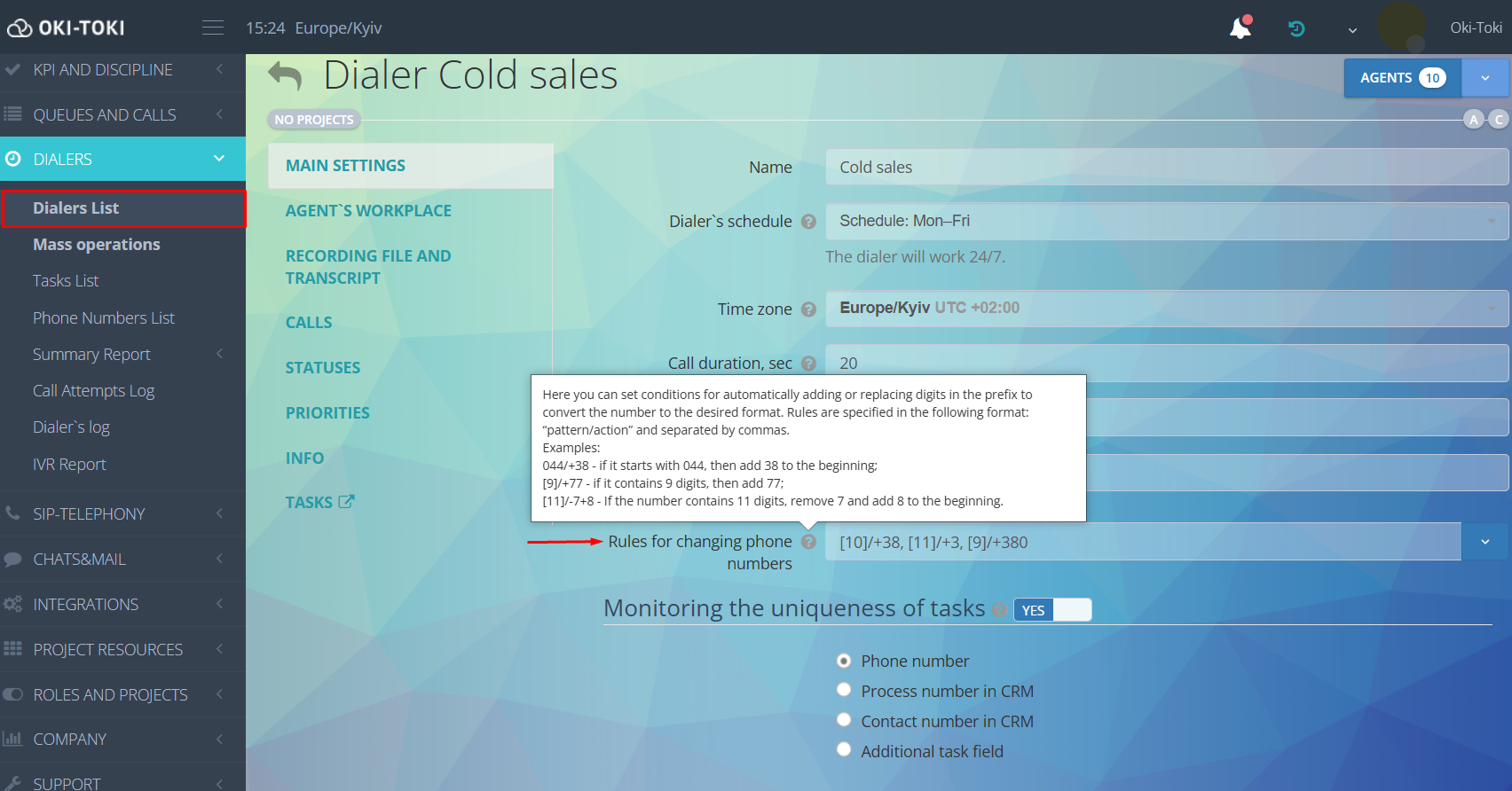
For phone numbers that are imported only into the dialer (without adding contacts to CRM), conversion is configured in the dialer settings.
Converting numbers when importing via API
For uploading contacts via API, use the request: https://home.oki-toki.net/api/v1/contacts/add. The parameter responsible for number conversion in the API import is — change_rule. You can specify the rules in the same format as for mass import. The system will apply them to the numbers before saving.
More about API requests and documentation in a separate article.
Converting numbers to the carrier’s format (for outgoing calls)
SIP providers work with different number formats. Some of them, like us, require a 12-digit international format, while others use 10. If there are such restrictions—specify the number conversion in the telephony settings.
Go to the SIP telephony menu, SIP providers tab, choose a gateway and open “Additional settings”. Enter the rule for converting the number.
For example:
- [10]/+38 — a prefix “38” will be added at the beginning of the number;
- [12]/-38 — the first “38” digits will be removed from the number.
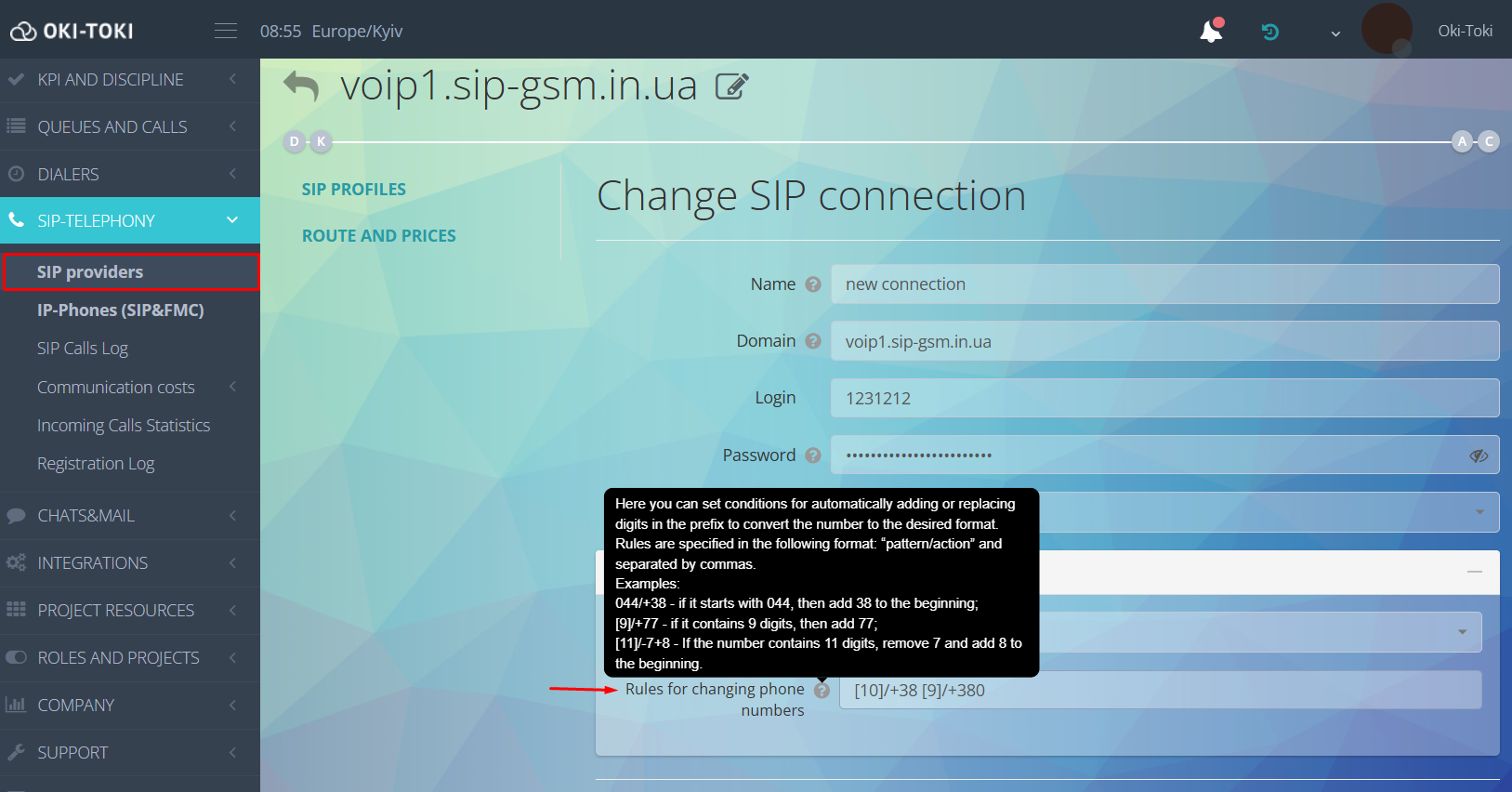
To ensure telephony works correctly, it’s advisable to clarify the outgoing authorization format with your communication provider beforehand. Read more about how to connect SIP-trunk and SIP-client in oki-toki in separate articles.
How to set up validation of phone numbers
Rules for valid phone numbers (validation) — it’s like a “face control” for numbers. Unlike conversion, validation doesn’t change anything; it simply decides whether to let a number into the system or not. This is useful when uploading new databases to weed out incorrect numbers, reduce call errors, and save resources. Examples of rules for valid phone numbers include:
- [12] — only allows numbers consisting of 12 digits;
- 380 — permits importing numbers that start with 380; all others will be rejected;
- 38[10] — loads numbers that start with 38 and contain 10 more digits.
To check data quality and protect the system from incorrect numbers, multiple rules can be applied simultaneously. A number is added to the database only after passing at least one check. A contact won’t save if all its numbers are invalid.
You can specify valid number rules in oki-toki settings in Dialer and mass contact import to CRM.
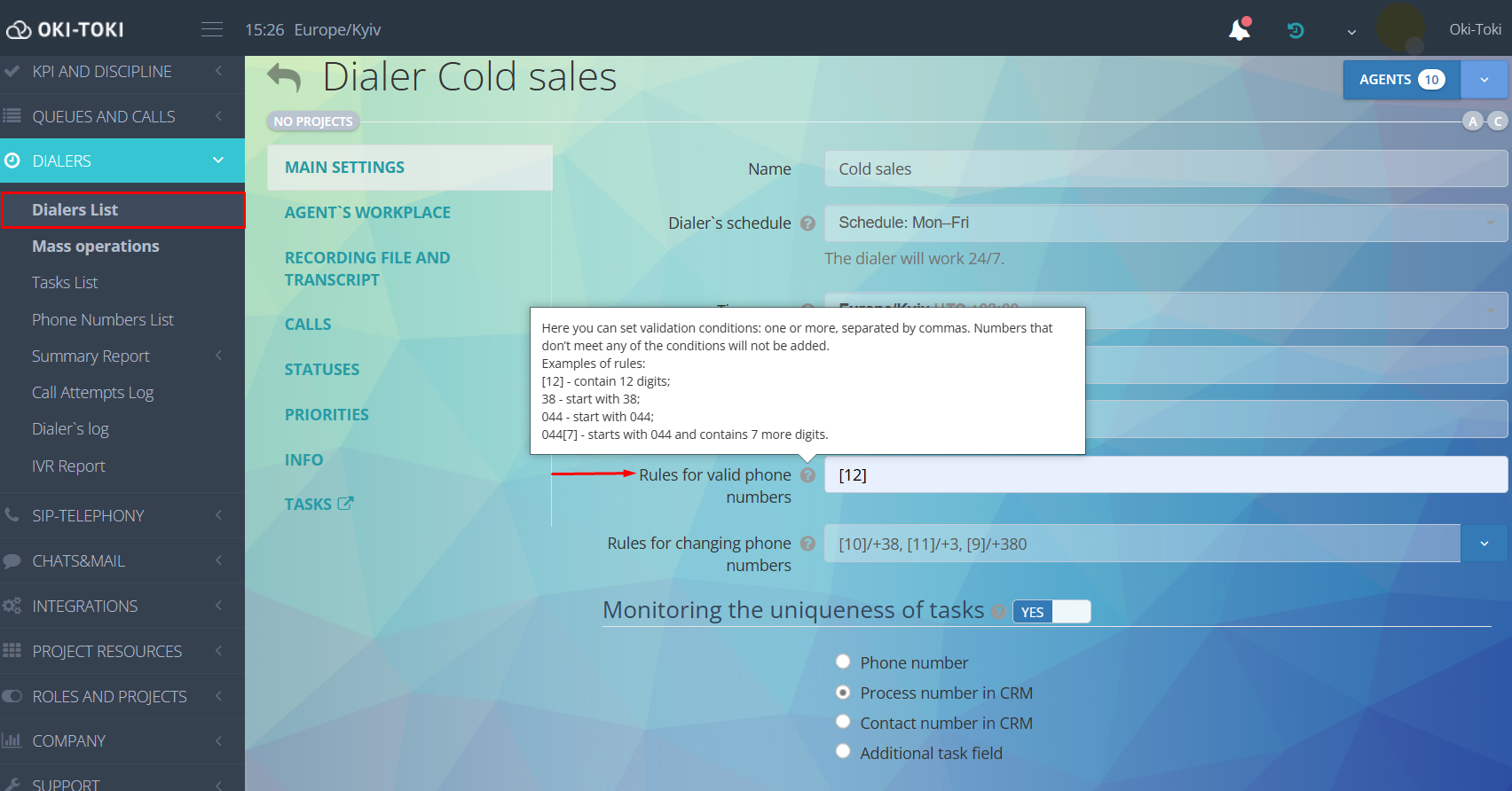
When uploading contacts via API to set valid number rules, there is the valid_rule. You can specify one value or more, separated by a comma. It’s best to use conversion and validation in conjunction. First, bring all numbers to the required format and check the results.
For incoming calls, validation works through the “Number Check” cube. Enter the needed rules in the cube settings in the call script and invalid numbers will be filtered out by the system.
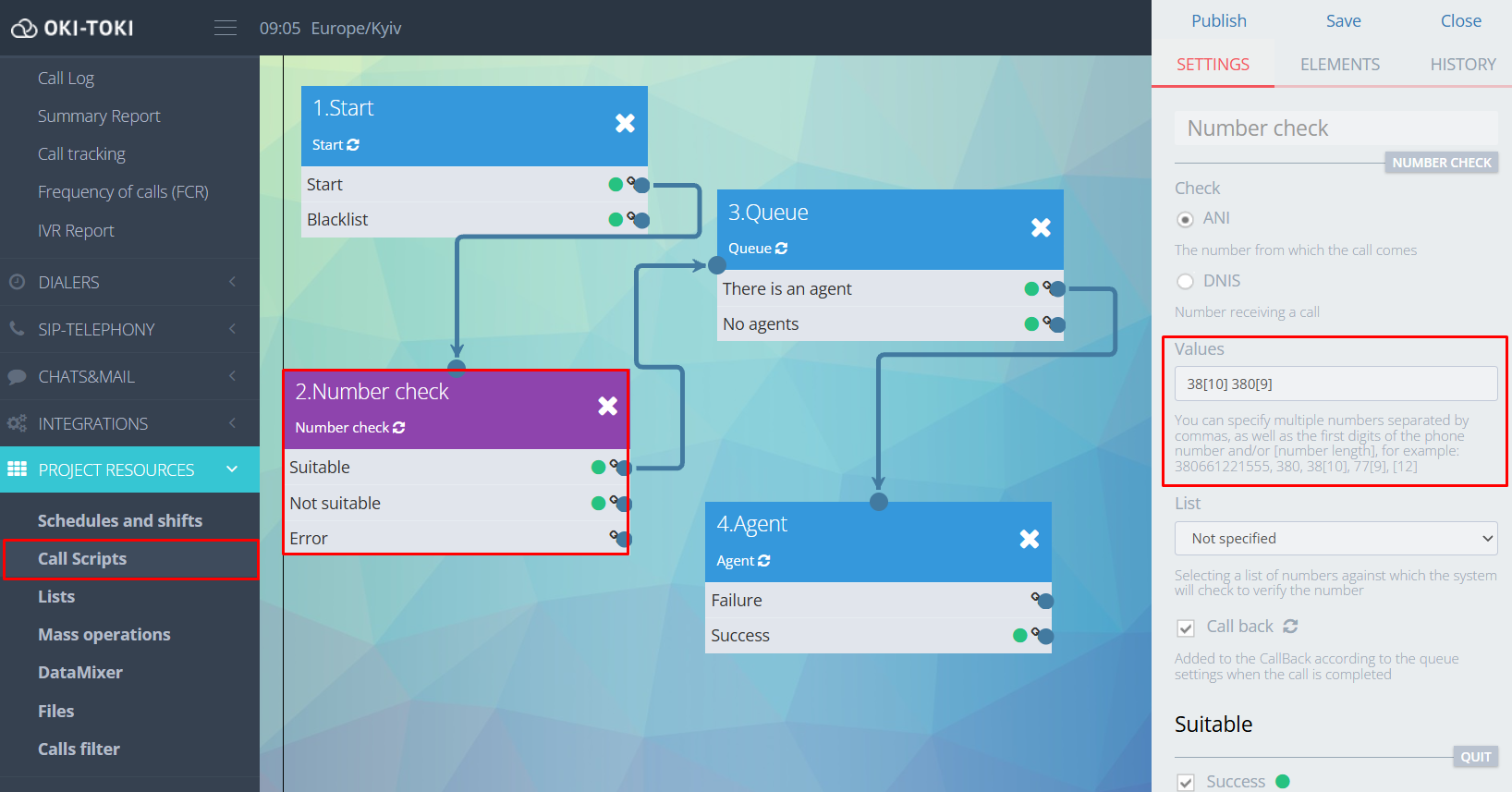
Read more about how to set up an incoming line from scratch in a separate article.
Conversion and validation rules ensure a unified data standard at all stages of working with numbers. As a result, the call center receives a high-quality contact database, the number of errors in telephony decreases, and the time previously spent on manual moderation and data correction is freed up for more important tasks.