
Call center agent call recordings are an important source of information. It is like the black box on an airplane: it helps you understand what went wrong and how to fix it. In this article, we will explain how to properly analyze and store data in Oki-Toki so it delivers maximum value.
How to analyze call recordings?
In general, the process can be divided into two stages: audio review and quality assessment.
How do you listen to an audio recording in Oki-Toki?
Playing back audio is one of the first actions taken when reviewing a call and assessing dialogue quality. In Oki-Toki, by going to Call Log, you can find everything you need:
- online playback – to open the audio recording in the Call Log, click the ID number and open the “Recording” tab. You can adjust the volume and playback speed. This makes it easier to distinguish details of the conversation and perform a more accurate analysis.
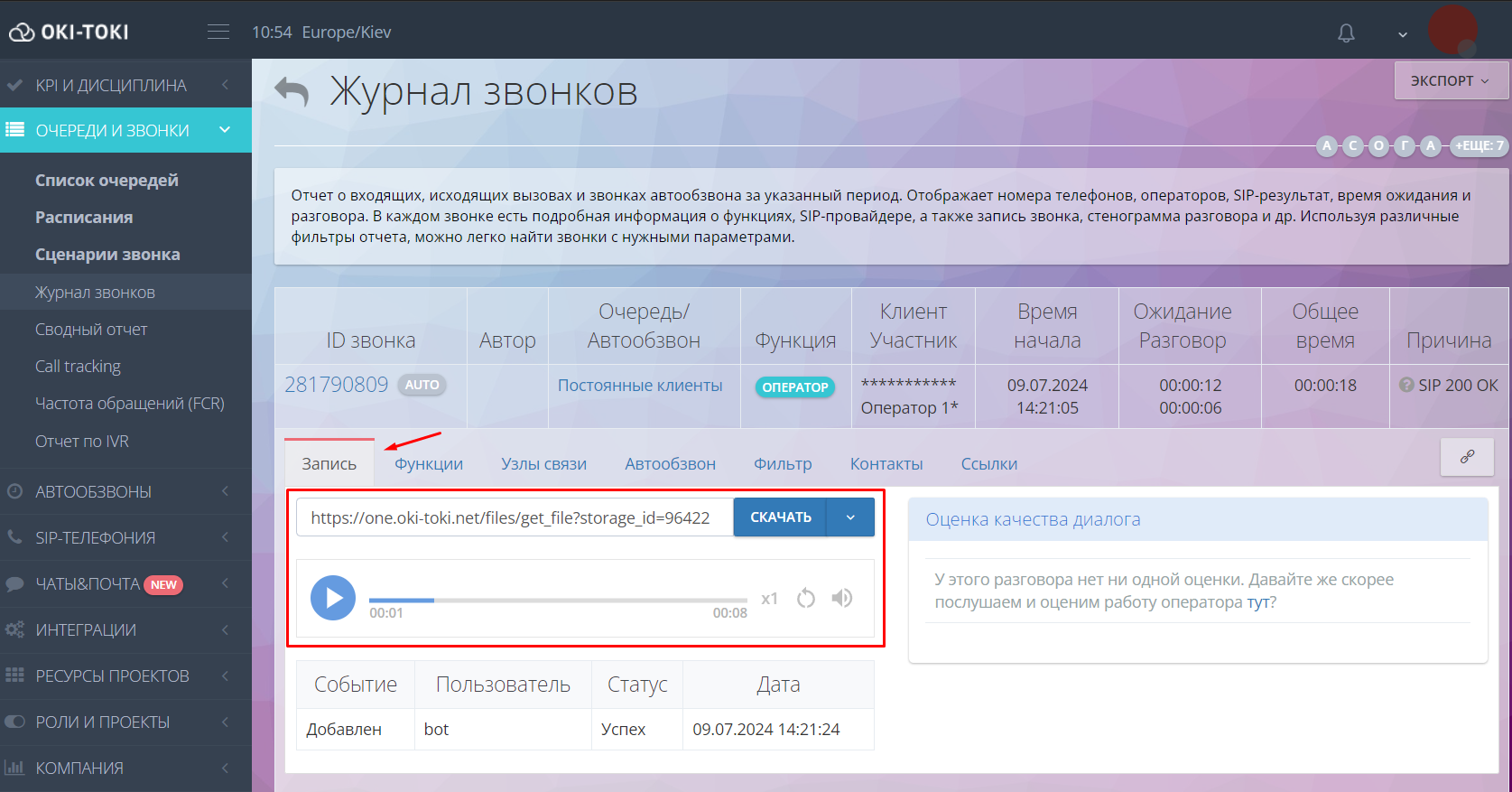
Important! If a call recording turns out to be silent, the system will delete it automatically. This helps keep the storage free of uninformative files.
- quality check of call recordings – sometimes during a call, the agent or the customer may not be audible. This can be affected by many factors, such as equipment and software issues, input devices (microphone/headset), poor internet connection, and more. On Oki-Toki’s YouTube channel, there is a video with step-by-step instructions on how to check and fix these issues.
- stereo call recording technology – lets you record audio with separate sound channels. This means the agent’s voice will be on one channel (for example, the left one), and the customer’s voice will be on the other (for example, the right one). This makes it easy to distinguish voices in the recording.
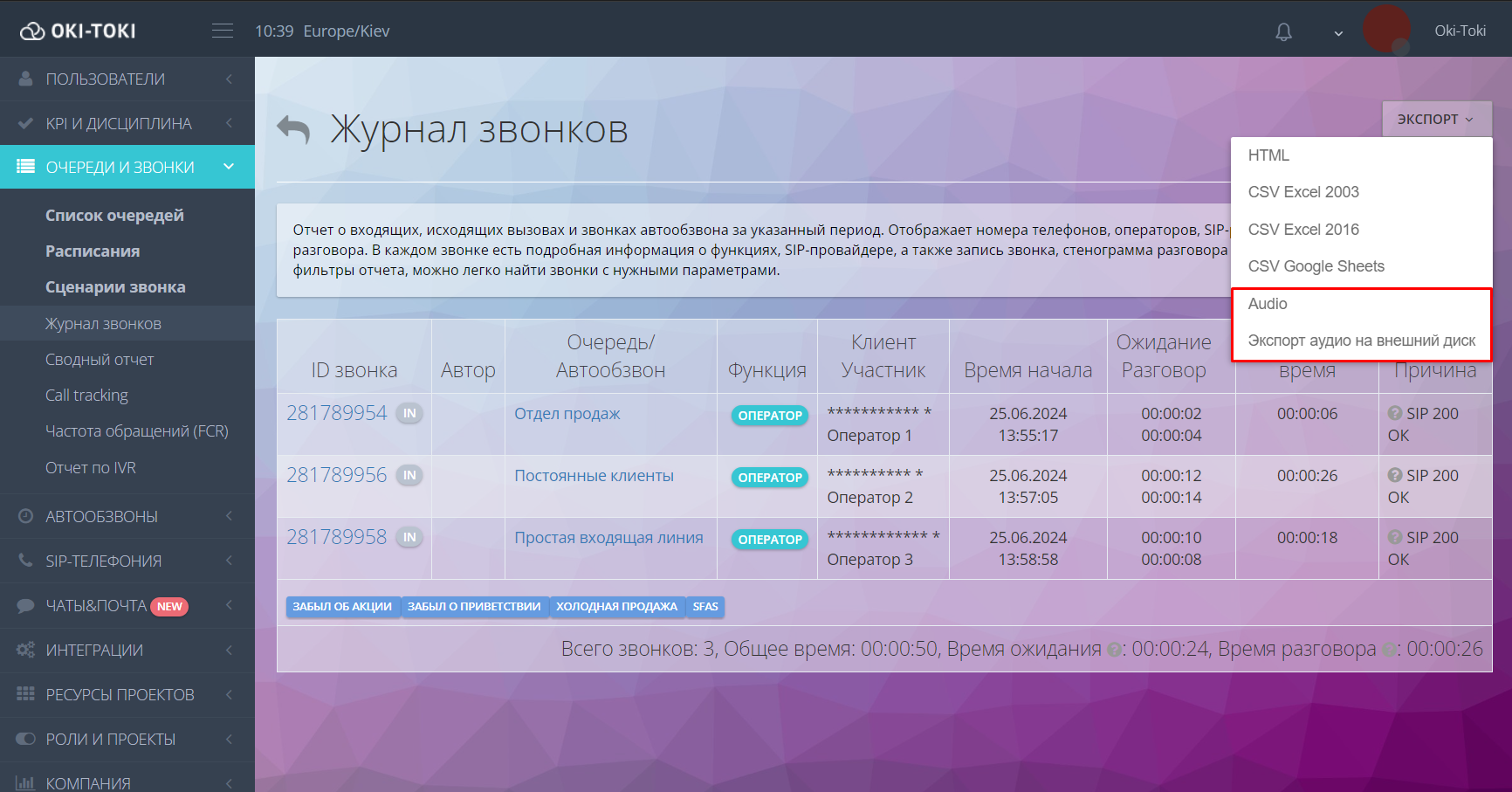
- downloading audio recordings – you can download the needed audio in MP3 format from the Call Log by clicking the “Download” button. If you need to download files for a specific period, you can generate a report and use the “Export” button to manually download the audio to your PC or cloud storage.
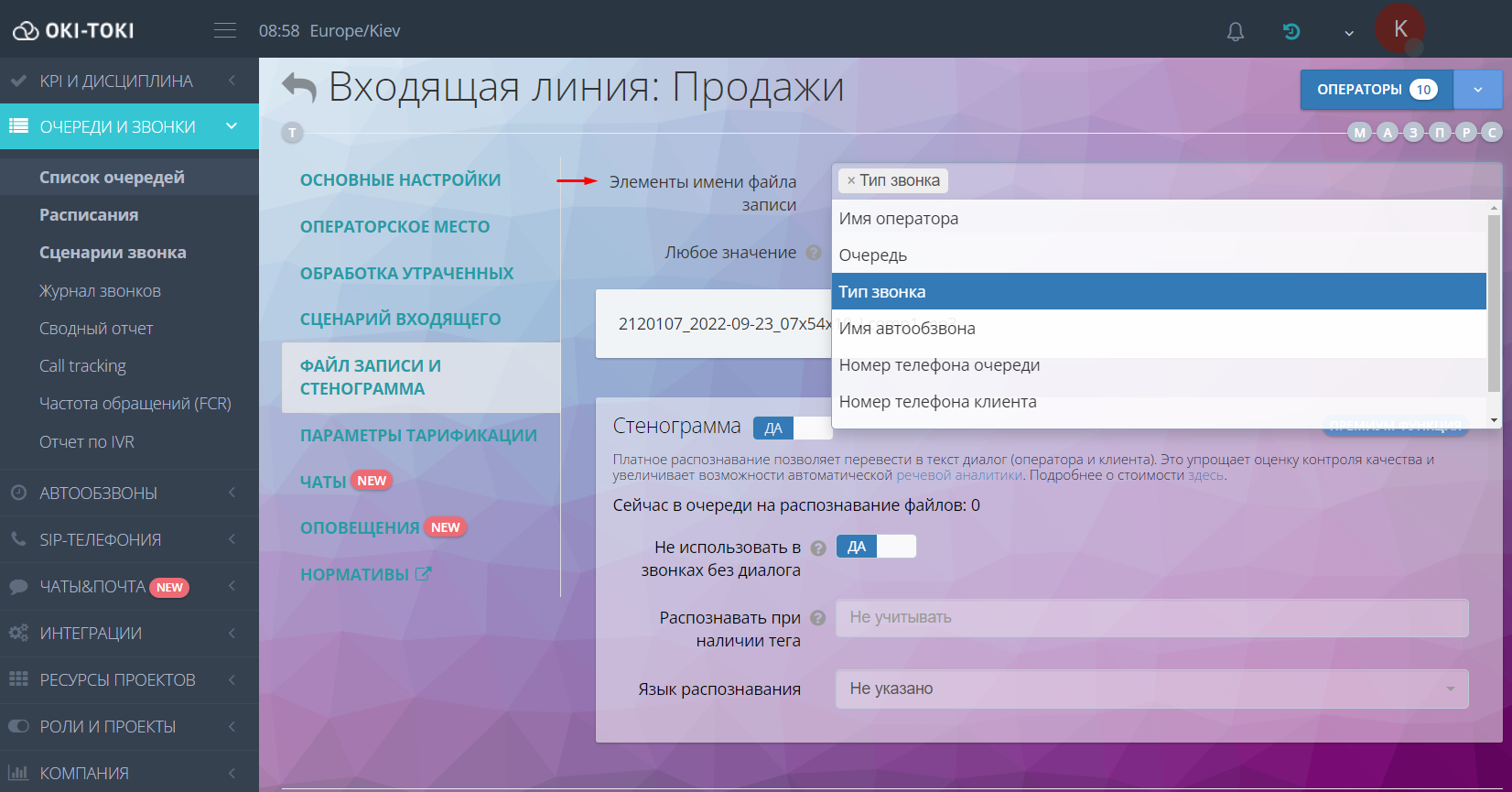
- call recording file name format – for convenient audio sorting, you can set your own naming option. In the settings of Queues or Dialer , choose the required item from the list. For example, the agent name, queue, or call type. You can use the “any value” field. Specify a suitable name or insert a variable from the contact fields in curly brackets.
- access history – lets you monitor when and by whom the call was listened to. The table shows the date the recording was added, the user name, the time when they worked with the audio, and the playback status.
How to evaluate call quality?
To evaluate conversations in Oki-Toki, you can use functions such as:
- two-way transcript – this is the automatic conversion of the customer and agent conversation into text. It can be enabled in the settings of Queues or Dialer, in the “Recording files and transcript” section.
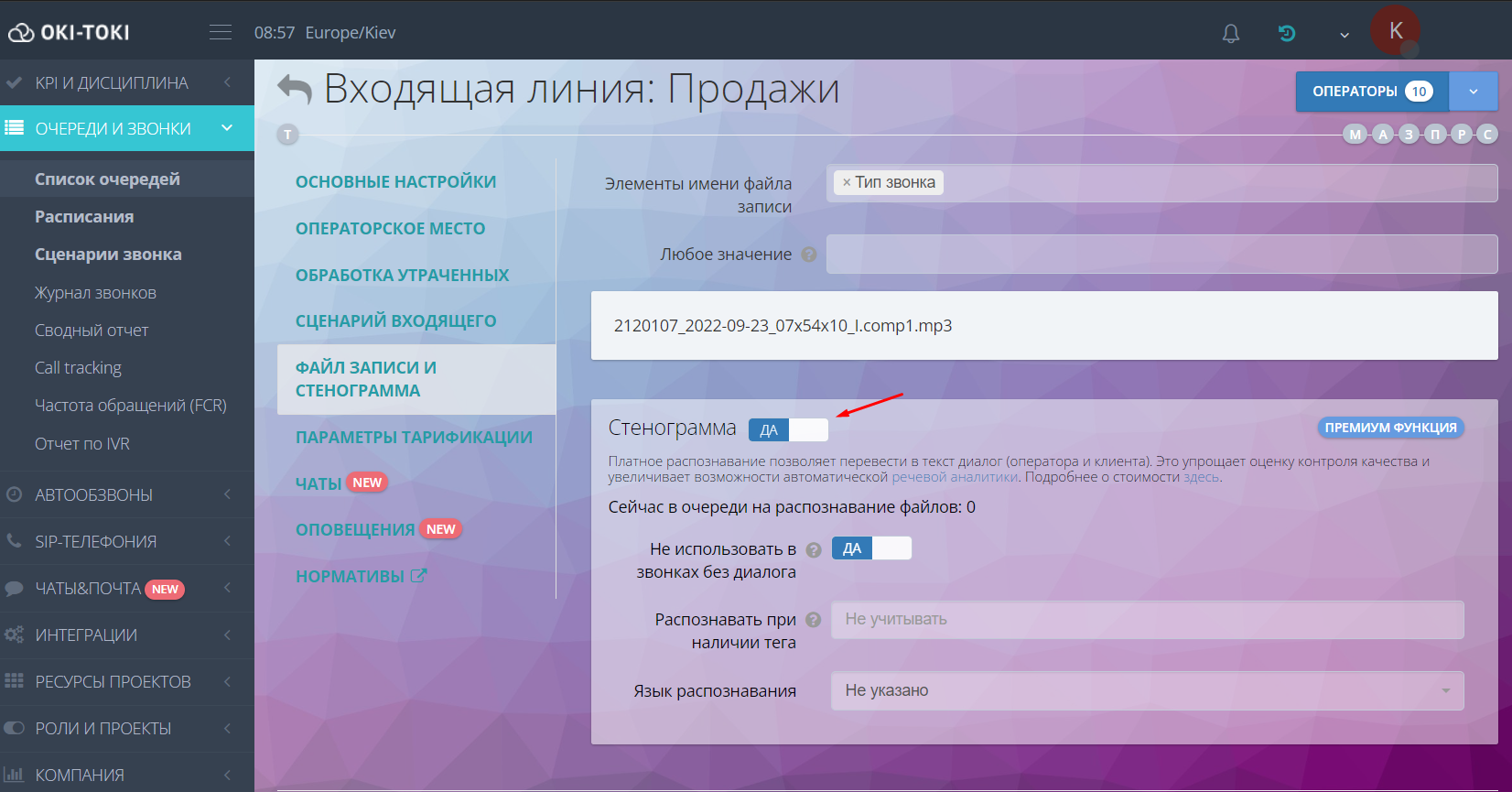
For best performance, we recommend using Google Chrome, which comes with a built-in speech recognition module. The transcript makes it possible to fully use speech analytics to evaluate service quality.
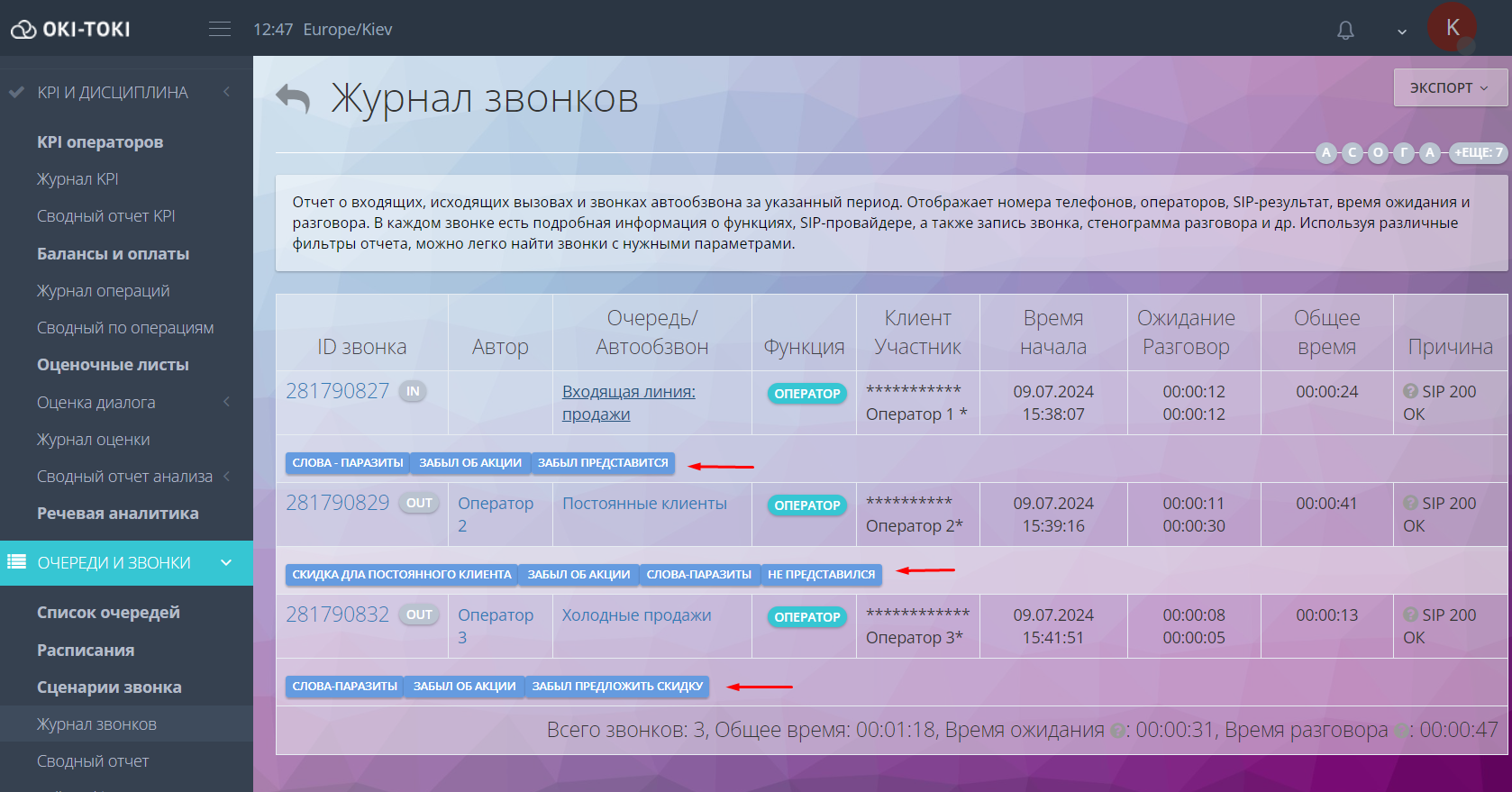
- speech analytics – a useful feature if you need the agent to say specific words or phrases to the customer. In Oki-Toki there are two search conditions:
inverse – the agent did not say the required words in the conversation, for example “promotion”, “bonus”, etc;
direct – on the contrary, it searches for keywords in the call and marks them in the transcript.
To create a rule, go to KPI/Speech Analytics and fill in the required fields. This rule will apply to the selected Queues and Dialer. You can see speech analytics triggers in the Call Log.
Important! Speech analytics works only when using a two-way transcript.
- quality assurance – an important stage in the work of every call center. It helps identify weak points in agents’ performance so that, in the future, you can adjust the approach to conversations or optimize business processes as a whole.
To get started, create review plans and scorecards. You can do this in the KPI and Discipline/Dialogue Evaluation section. Review results and the reviewer’s comments can be found in the Evaluation Log or in the Summary Analysis report. Read more about quality control in our blog.
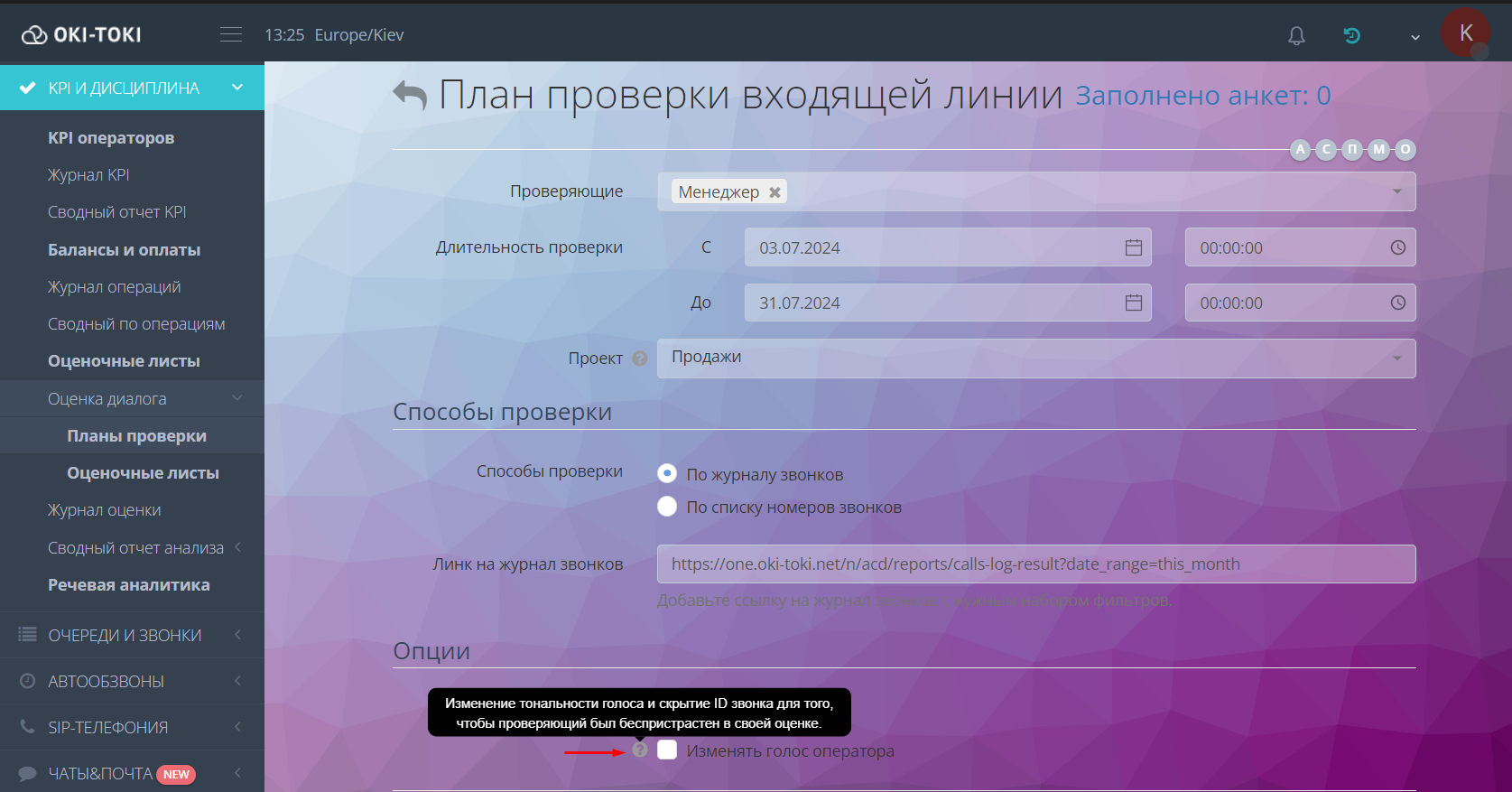
- agent voice change – to keep the reviewer impartial during the check, you can change the agent’s voice tone and also hide the call ID. You can enable this option when creating a review plan.
How should call center call recordings be stored?
It is important to provide a reliable and secure storage for call center recordings so that the data is protected and always accessible. In Oki-Toki, you can choose the most suitable options.
Local storage
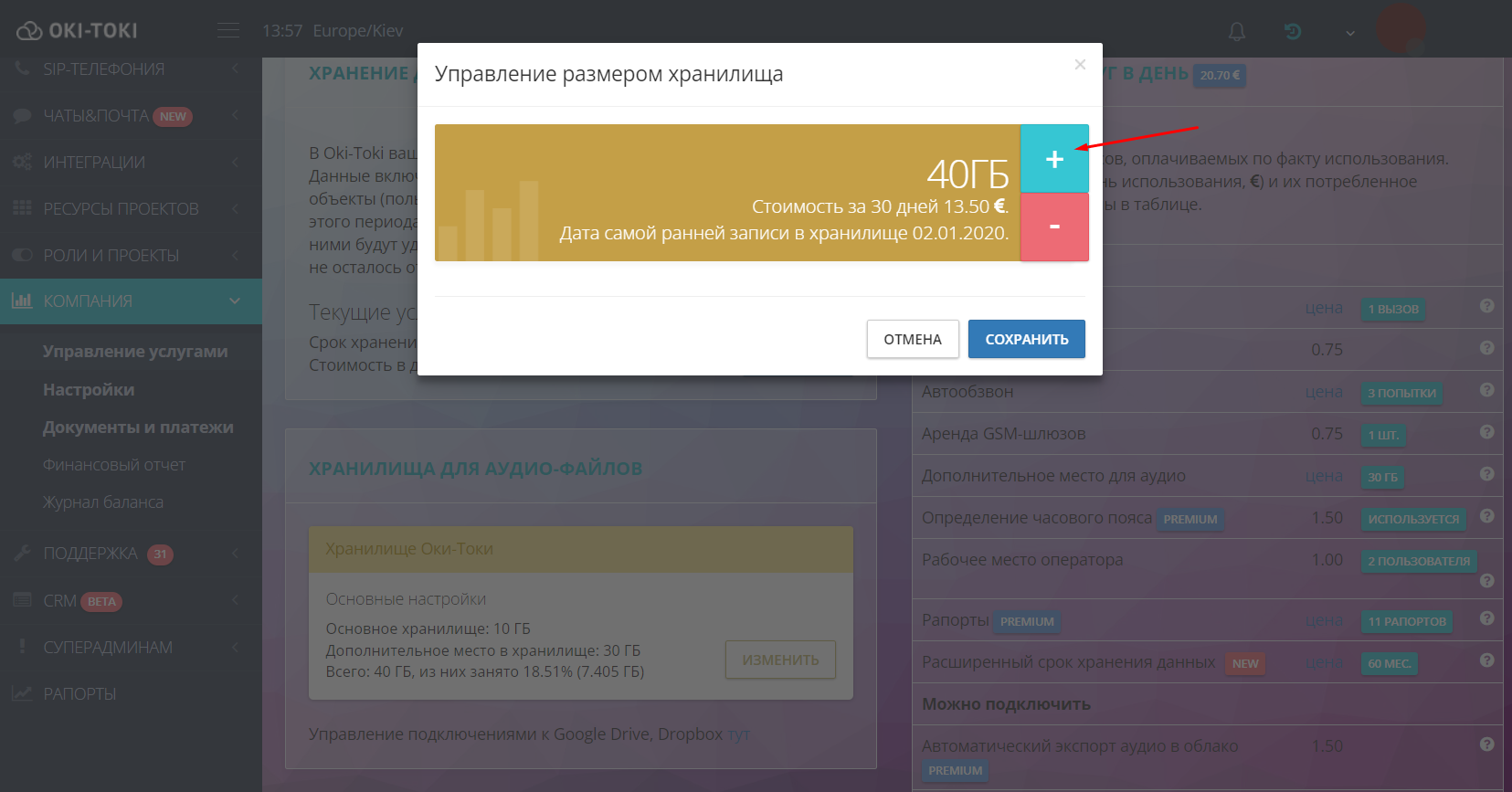
Call recordings are stored on Oki-Toki servers. The size of the main storage is 10 GB, and its cost is included in the subscription fee. If needed, the capacity can be increased. To do this, go to the Service Management section and click the “Edit” button in the “Audio file storage” widget.
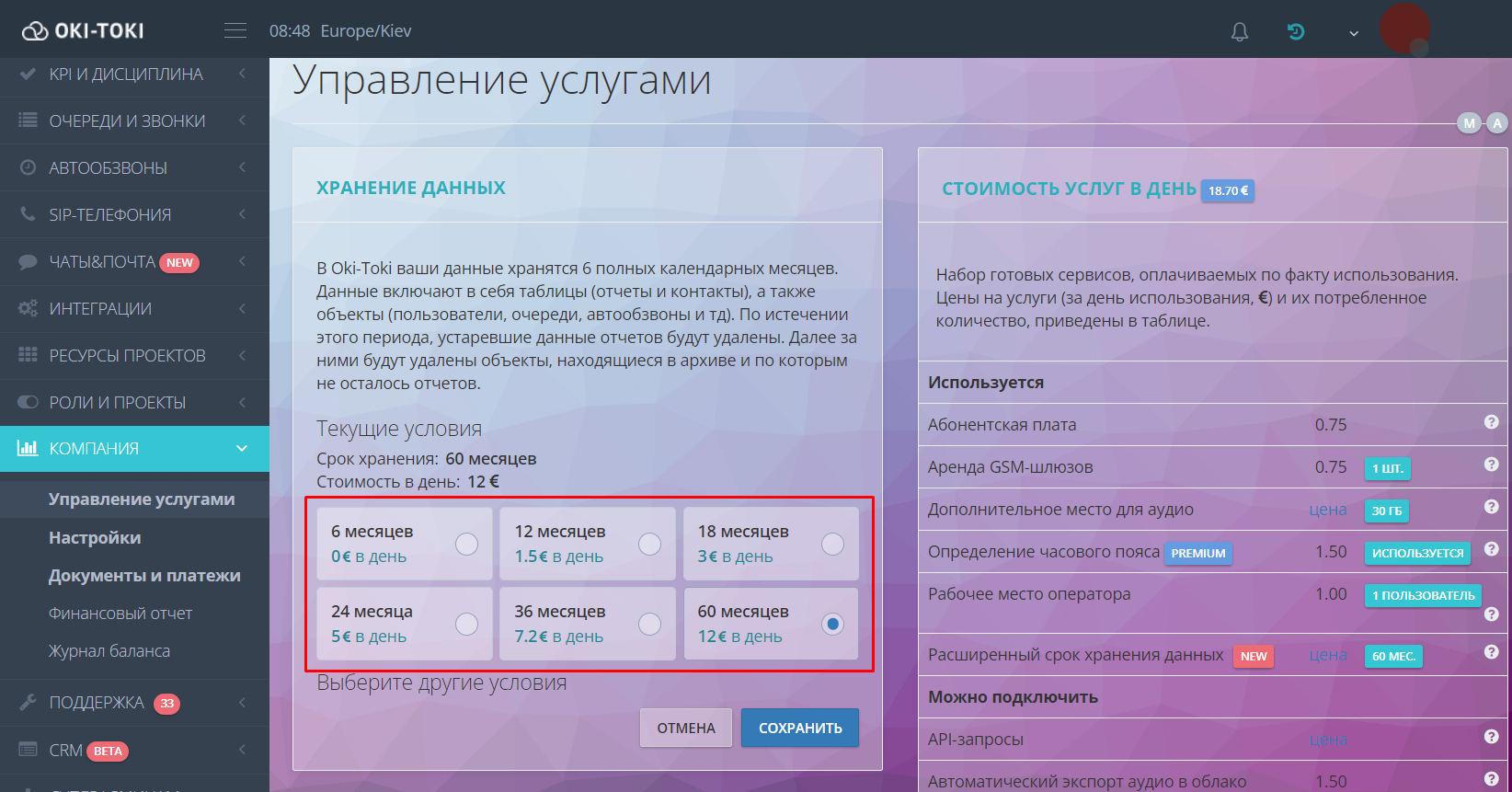
Important! In Oki-Toki, data is stored by default for 6 full calendar months. After this period, all outdated information will be deleted automatically. To avoid losing important data, you can extend the retention period. In the same section, you can choose the most suitable terms.
Cloud storage for call recordings
Audio from Oki-Toki can be exported to the cloud. Using Google, Dropbox to store recordings helps you access the data from any device with a connection to the drive.
To manage External resources require special access for the user. You can grant this permission in the Roles section. More information about the settings can be found on our blog.
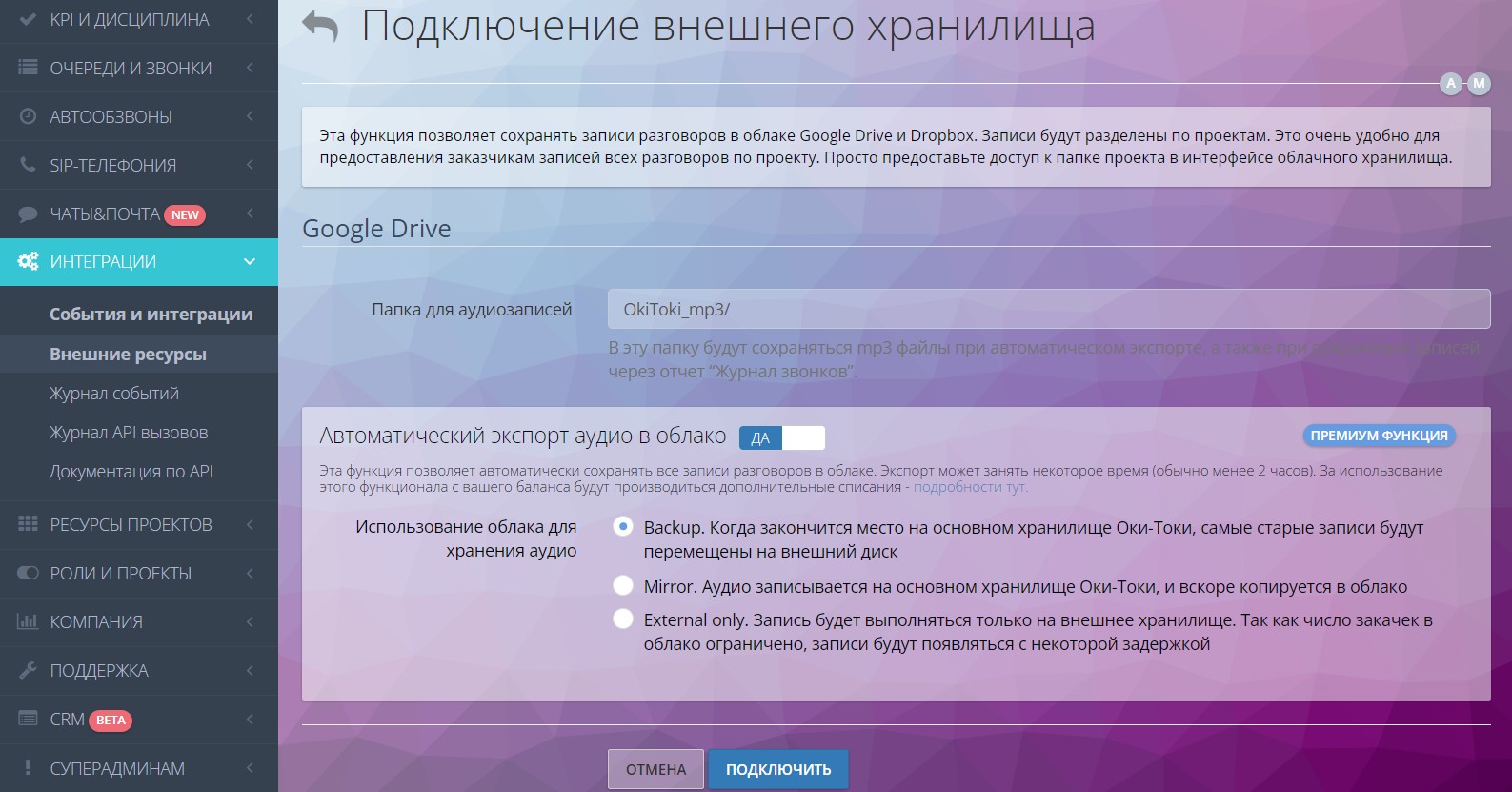
To add an external storage, go to Integrations/External resources. Click the “connect” button and choose one of the available options. Here you can also configure automatic export conditions:
- backup – transfers the oldest recordings to an external drive when local storage is full;
- mirror – audio is recorded in Oki-Toki and copied to an external drive;
- external only – recordings will be uploaded only to an external drive.
Important! Only one external storage can be connected in Oki-Toki.
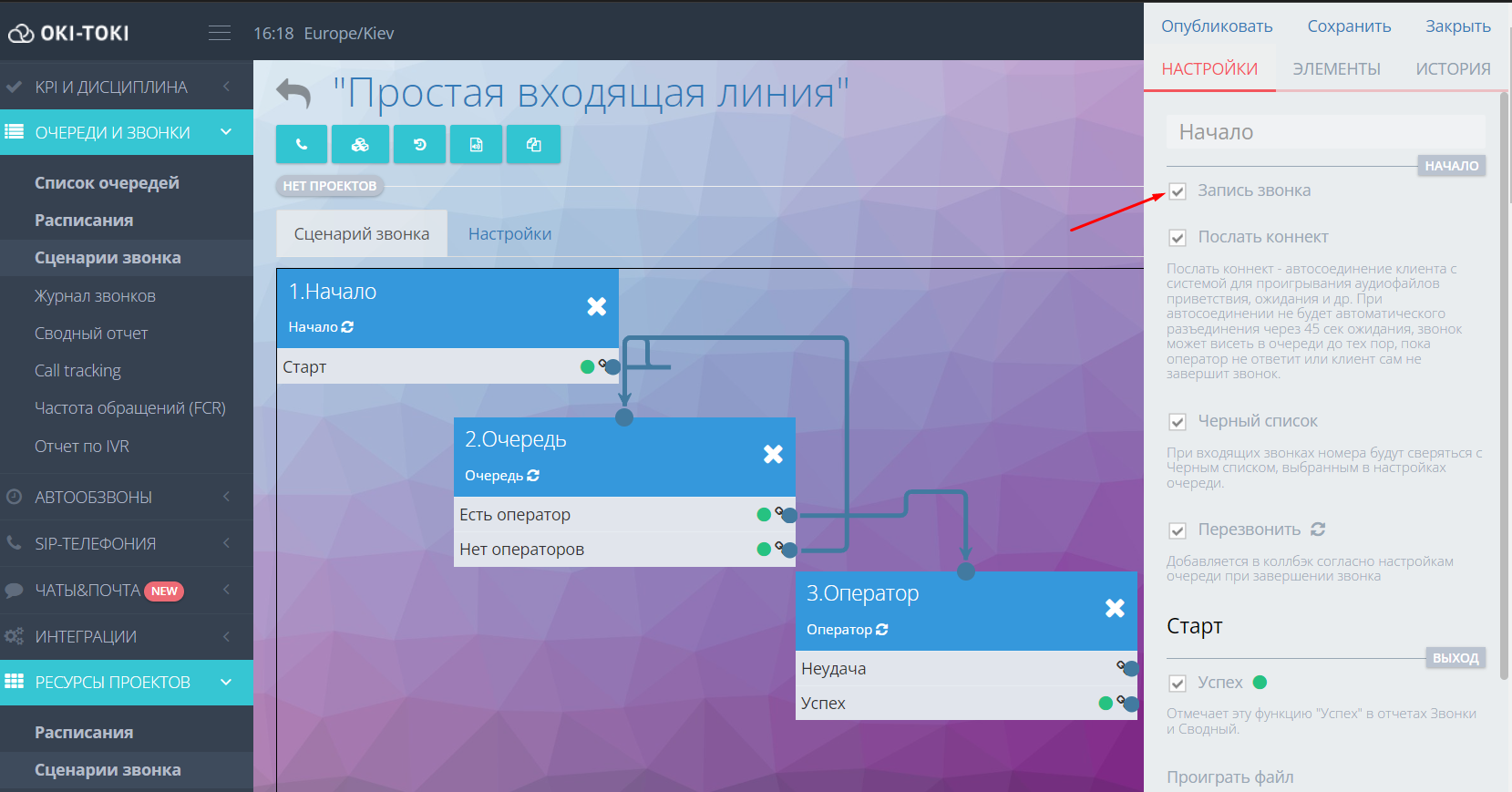
If there is no need to store call recordings, this function can be disabled. Go to the call script and uncheck “Call recording” in the start block.
Call recordings from contact center agents are a valuable resource. With their help, you can:
- evaluate agent performance and identify areas for improvement;
- train employees using real-life examples;
- use them as evidence in disputes with customers;
- understand customer needs and improve service quality.
Oki-Toki provides convenient tools for listening to, analyzing, and automating the storage of contact center recordings. With them, work will be easier and more effective.