

What is a dialer?
A dialer is an automated process of calling clients using special software for dialing numbers. Thanks to the dialer, employees can quickly contact a large number of subscribers without wasting time on manual calls. Using voice robots, you can call a database of numbers without agents on the line. This is useful for mass calling when conducting surveys, sending notifications, providing standard information, etc. By utilizing Oki-Toki dialer you can optimize working time, increase call center productivity, and improve interactions with customers.
How to make calls to clients properly?
To properly set up a dialer, you need to consider several important points, such as the quality of the database, calling times, etc. The main steps for successful calls:
- Preparing contacts: start by preparing a contact list, the more real numbers you have at the database import stage, the more successful the result will be;
- Creating a voice message: record a clear and informative message that will be played during the call;
- Dialer settings: depending on the quality of the database, the number of agents and the goals of calling, you need to choose the right settings: the number of lines, priorities, redial time, etc.
- Managing calls: determine the optimal operating time for the dialer, taking into account customers’ time zones, their convenient time, and the pace of callbacks;
- Testing the system: before beginning to call the database of numbers, conduct testing – load your number and check that everything works correctly;
- Processing results: monitor the work of the dialer and the results through widgets and reports, analyze the data to optimize the process. Pay attention to the number of successful calls, customer responses, and other metrics;
- Improving the process: use the data obtained from reports to improve the automated calling process for subscribers. Apply new strategies, change settings to increase efficiency and improve results.
How to configure a dialer in Oki-Toki?
Visit the section List of Dialers and click the “Create” button. A settings page will appear with sections to fill out for your specific case.
Basic settings
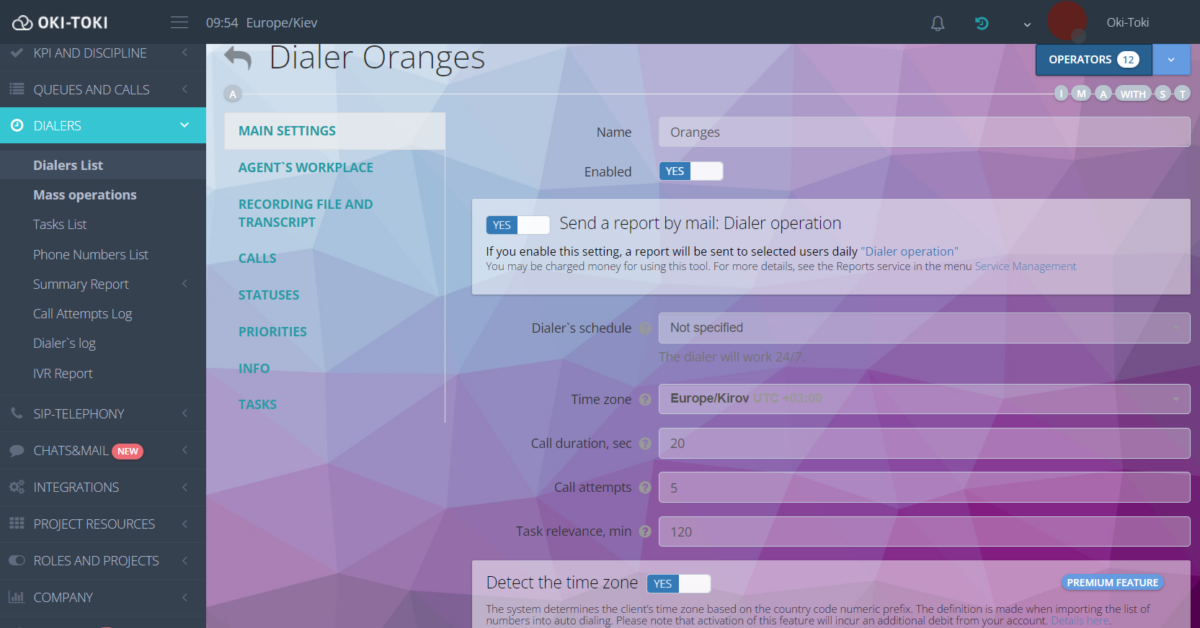
- Schedule: if not specified, the dialer will call around the clock;
- Call duration: how many seconds the dialer will wait for a connection with the client;
- Dial attempts: the number of times the dialer will try to reach the subscriber.
Time zone:
- Dialer time zone: specified according to UTC; by default, it is set according to company settings;
- Time zone determination (Premium feature): the system determines the subscriber’s time zone based on the country code’s digital prefix when importing numbers;
- Customer schedule: you can specify the time period during which calls will be received. This is necessary when using the feature to determine the client’s time zone.
Additional settings
- Auto-confirmation: specify the call duration for a task to be considered successful. For example, if a conversation with an agent should be longer than 5 seconds;
- Blacklist: a list of numbers not to call;
- Period: you can specify the calling period if there are specific project deadlines. The dialer will turn on/off at the specified time;
- Integration: here you can specify the call script (necessary if the dialer uses IVR, sends SMS, auto-agent, etc.) and set up the questionnaire display for agents (Oki-Toki questionnaire or external CRM).
Calls
- Priority: how intensely the dialer will dial tasks (useful if there are several projects in the company and some have a higher priority);
- Maximum number of lines: the number of lines the dialer can use simultaneously. The system will not be able to use more lines than provided by your SIP provider;
- Dialer mode: Callback mode, Progressive mode, Power dial, Predictive mode, or Limitless mode.
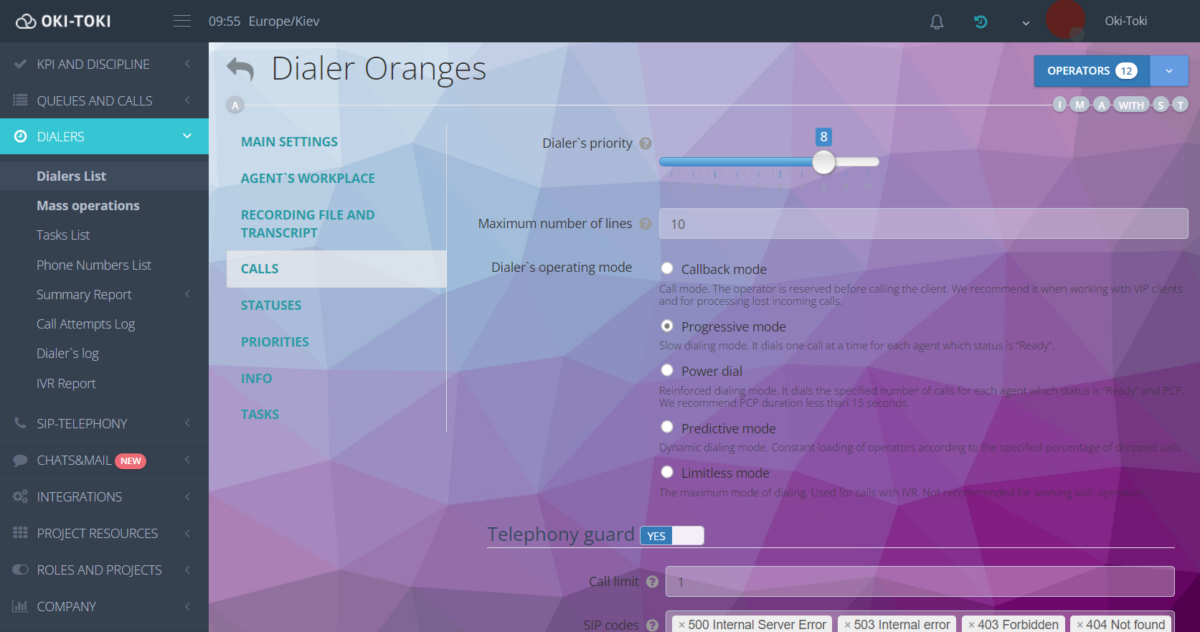
Important! For dialing without agents, only the Limitless mode is suitable – an unlimited dialing mode that will dial numbers depending on the specified number of lines.
A detailed description of all calling modes is available in the article on the blog.
Statuses
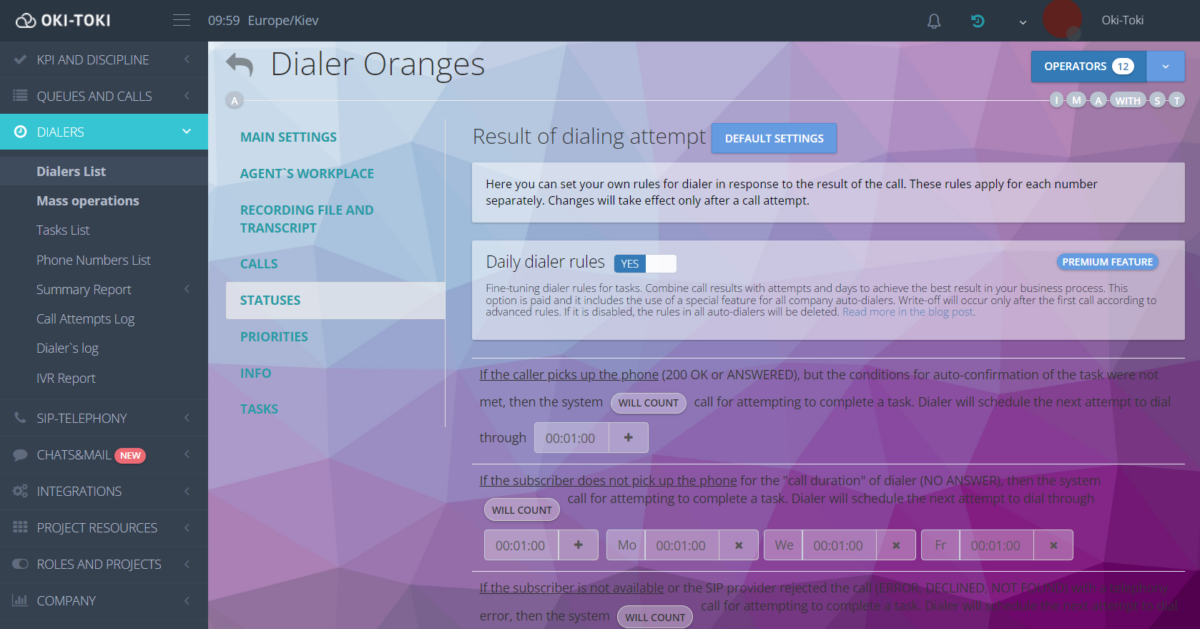
This section includes settings for redial rules. Here, you can set your own dialer operating rules based on the call result. For example, if a subscriber does not pick up or if there is no free agent available, you can specify a time interval for automatically redialing this customer.
Daily rules (Premium feature) – the ability to set redial intervals depending on the days of the week. For example, on weekdays, the dialer will dial tasks with greater intensity than on weekends.
Priorities
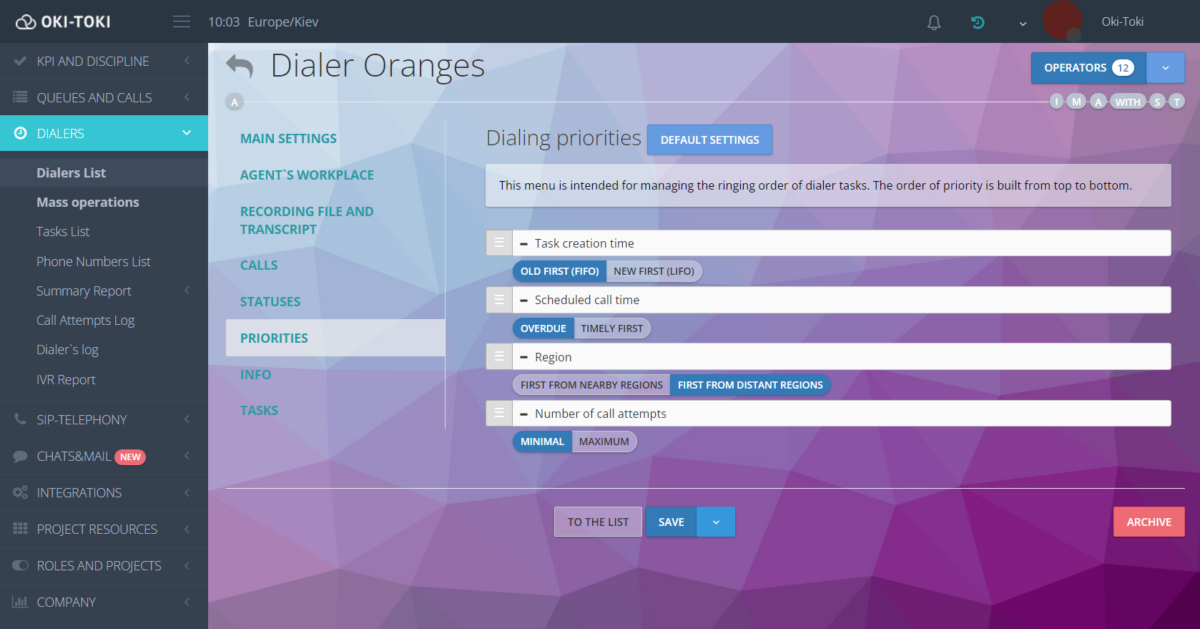
This menu is for managing the order of calling tasks. The order of priority is built from top to bottom. For example, you can specify that numbers from distant regions and the most overdue tasks are dialed first.
Provider
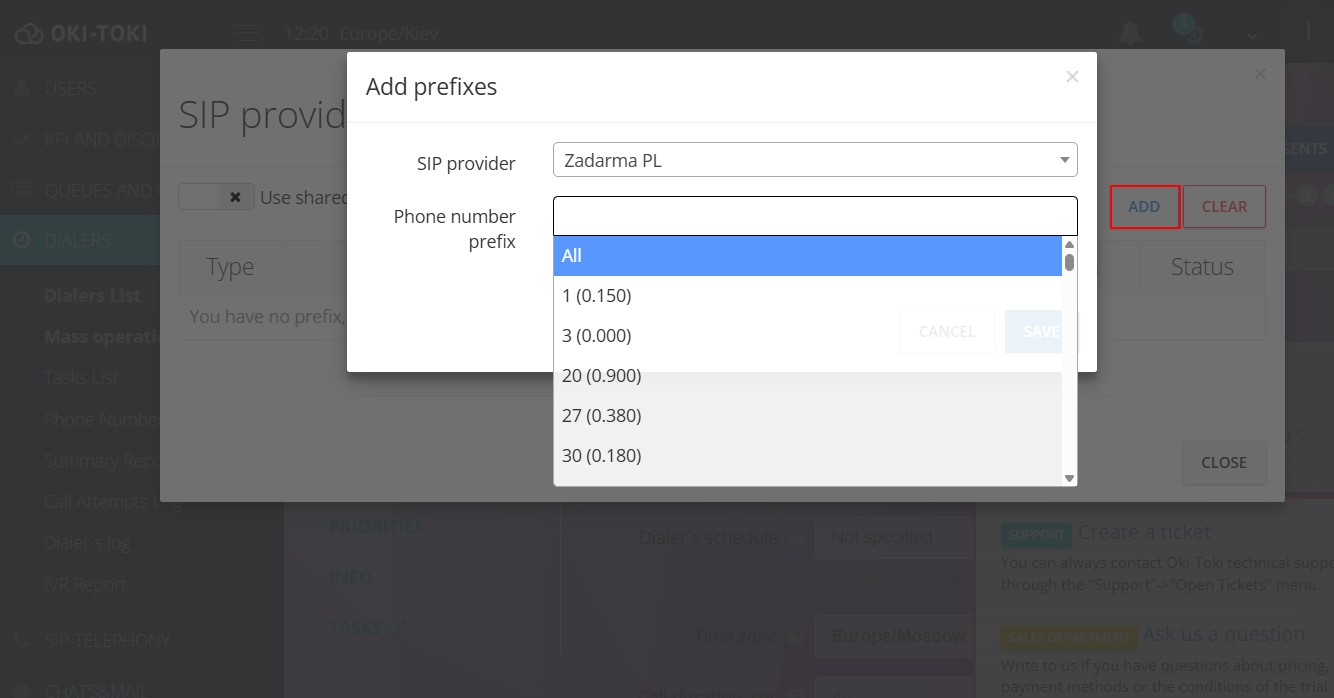
After all settings are completed, you need to connect the dialer to a SIP provider for making calls. Detailed SIP provider settings are described in the article on the blog. When telephony is connected, specify the required gateway and number prefixes in the dialer settings.
How to add numbers to the dialer
To set up calling clients using a database, go to the section “Bulk operations” and choose one of two options: import contacts into the dialer or import into CRM.
Importing contacts into the dialer
Specify the required project and dialer, copy the table without headers from MS Excel or Google Sheets.
- Phone field – a column for indicating phone numbers for calling; it can contain multiple phones, separated by commas;
- Time – planned calling time. Each task can have its own time in the format DD.MM.YYYY HH:MM. Calls will be made according to the dialer’s time zone;
- Agent – to assign specific tasks to the required agents, specify the user’s email. This is suitable only for the dialer in Callback mode.
Important! Note that the fields during import must be matched with the fields in Oki-Toki.
Importing contacts into CRM
This is similar to uploading numbers into the dialer, but importing into CRM is used if agents fill out questionnaires during the call and need the contact fields to display information, such as the client’s name, company name, city, etc. Therefore, fields with data that the agent will see during the call are uploaded during the import.
Read how to set up calling a customer base using CRM in this article.
Important! Before launching the dialer with a large contact base, conduct testing to ensure everything works correctly. Upload a few numbers to check that all settings are done correctly and telephony is active. Listen to the test call and check the accuracy of the message playback.
How to set up dialing clients with a robot
If you need to call a database of numbers without agents, a call script with voice messages or robots is suitable:
- Message – playing a recorded sound message, used for informing the client;
- Say phrase (Premium feature) – voice message synthesis using cloud services. You can use variables to compose sentences. Synthesis up to 1000 characters is free;
- Auto-agent – a voice robot conducting a conversation according to a dialogue script. Using speech synthesis, it reproduces questions according to the script, and thanks to the speech recognition system, it perceives the answer;
- IVR (Interactive Voice Response) – a call script cube that allows building a chain of dialogue, creating a primitive virtual agent. IVR provides simple information and follows the call script, recognizing customer responses or DTMF presses.
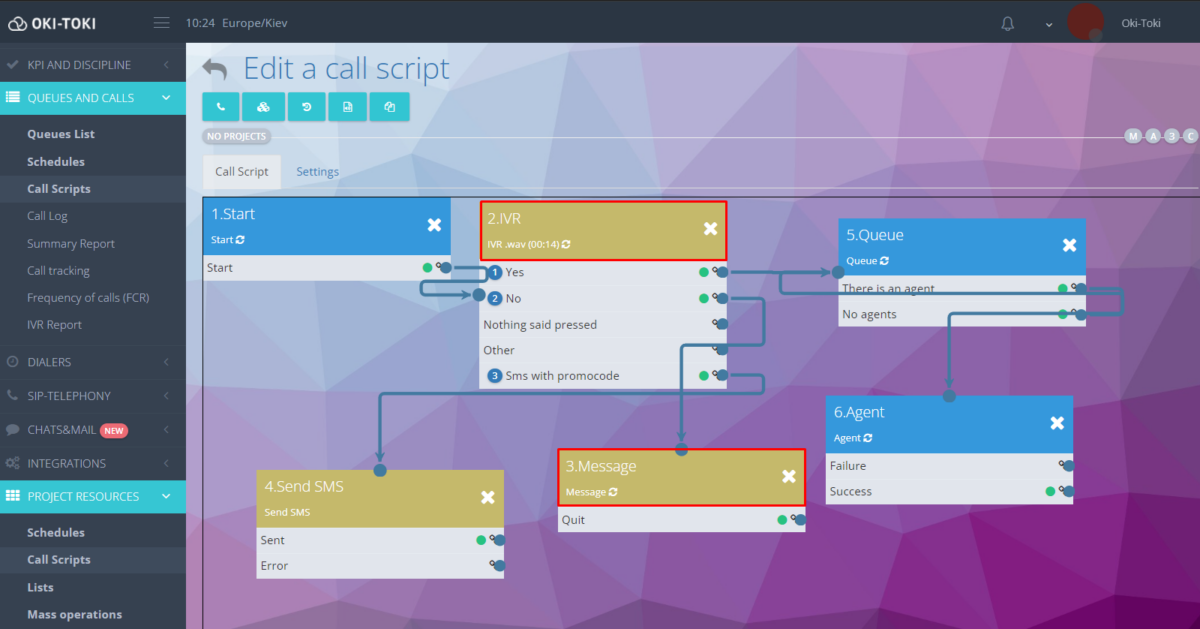
Important! For dialing a database of numbers with a robot, in the dialer settings, don’t forget to select the Limitless mode so it starts without agents.
Reporting
In Oki-Toki, there are many useful reports for monitoring the dialer’s work:
- Dialer log – shows status changes and helps find out why the dialer stopped. For example, when agents were unavailable or telephony had an issue;
- Task list – a report for analyzing processed and pending tasks. It is created to answer questions: “How did this task appear”, “How many calls have been made for it”, “When was it planned and processed”, “What status does it have”, etc.
For more details about the “Task list”, read the separate article Report on Calling.
- Phone list — shows task numbers, phone numbers, call attempts, results, and call IDs;
- Summary report on tasks – shows the number of dialer tasks, divided by statuses: in queue, success, failure, and cancelled. Tasks can be grouped by date added or by processing date;
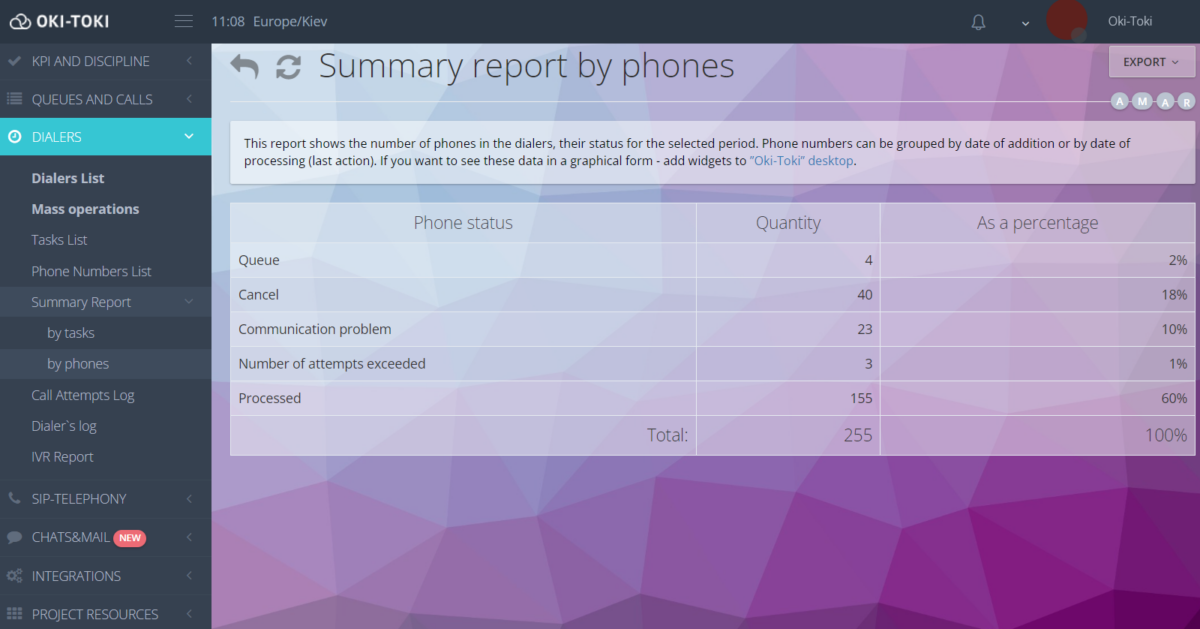
- Summary report on phones – the number of numbers in the dialer, grouped by statuses;
- Attempt log displays all attempts of the selected dialer for the specified period, detailing the result: task number, phones, call IDs, number of attempts, and result;
- IVR report – shows data on the frequency of IVR responses. Data can be grouped by calls, numbers, and, traditionally, by days and months. You will be able to collect statistics on DTMF presses and assess how successfully customers navigate through the IVR menu;
- Call log – displays call details for a selected period. When generating a report, you can choose a specific dialer or indicate all automatic calls. Using a filter, you can find all calls of interest with given parameters. The log provides the exact time of the call, the agent it was directed to, reason for not connecting, a transcript of the call, a recording of the conversation, etc.
These reports will help you understand how well the automatic dialing is working and review the main indicators. Based on this information, you can enhance your calling strategy, increase customer loyalty, and make your call center’s operation more effective.